Admin
Admin Overview
The Admin hub (the wrench in the sidebar) is the control room for Forge. It gathers every org-wide setting on one page as a grid of cards, grouped by topic. Open a card to configure that area. Admin pages need Admin access; anyone without it is sent back to Home.
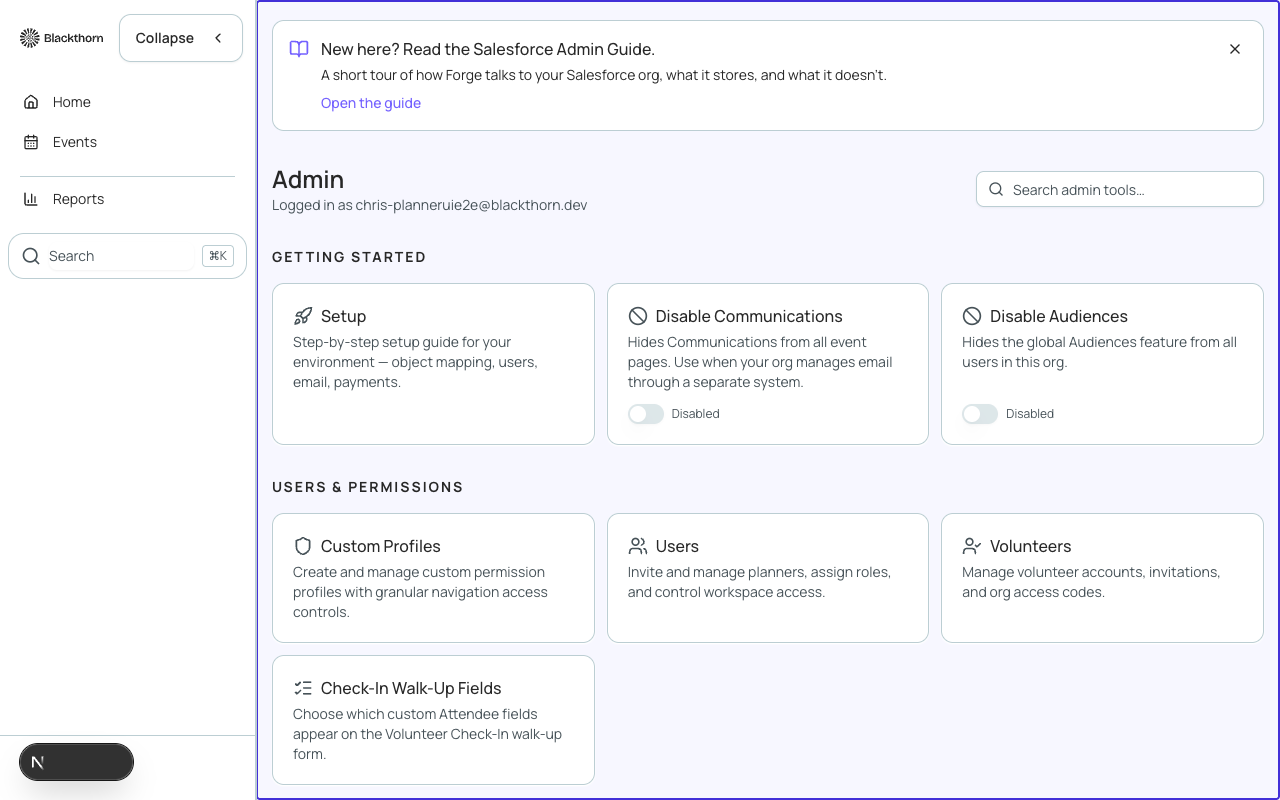
Short version: start with the Setup card, then work through Email and Payment Gateways. Use the search box to jump straight to any setting by name, for example gateway, layout or logs.
Using the hub
| Item | What it does | Recommendation |
|---|---|---|
| Logged in as | Shows which Salesforce user or email you are signed in as. | Check it before changing settings if you use more than one org. |
| Search admin tools | Filters the cards as you type, matching card names, descriptions and keywords such as sender, cache or csv. Clear it with the X. If nothing matches it says no results. | Faster than scrolling once you know the setting you want. |
| Getting Started | With no search text, a Setup card sits at the top for the step-by-step guide to required apps, users, email and payments. The other groups appear below, and when you search every group is shown. | New org: finish Setup first. |
| Guide card | A link to this guide, at the bottom. | Use it when a setting is unclear. |
Admin cards at a glance
These are the cards most admins see, grouped as on the hub. Some tools are not shown to every org, because they are in preview, intended for Blackthorn staff, or only apply to the demo org.
| Group | Card | What you do there |
|---|---|---|
| Getting Started | Setup | Step-by-step setup guide for your environment: required apps, users, email and payments. |
| Users & Permissions | Users | Review team members, change roles, turn Admin access on or off, remove people and revoke personal Salesforce tokens. |
| Email Settings & Preferences | Sender defaults, sending domain and DNS, subscription categories and suppression. | |
| CC Additional Emails | Choose which Salesforce email fields are also copied on attendee emails. | |
| Email Journeys | Build trigger-based multi-step email automations. | |
| Disable Communications | A switch. When on, Communications is hidden from all event pages. Use it when your org sends email through a separate system. | |
| Disable Audiences | A switch. When on, the global Audiences feature is hidden from all users. | |
| Salesforce | Salesforce API Usage | Daily API call use and limits for the connected Salesforce org. |
| Salesforce | Salesforce Caching | Refresh Forge's saved copy of Salesforce layouts and setup records. |
| Salesforce | Salesforce Org Connection | Check the Salesforce connection, reconnect, and refresh metadata. |
| Salesforce | Salesforce Writes | Watch the queue of changes waiting to be written to Salesforce, and repair status. |
| Configuration | Payment Gateways | Connect and manage payment providers such as Stripe and Authorize.net. |
| Configuration | Event Creation Fields | Choose which fields appear when creating an event. |
| Configuration | Record Layouts | Choose which fields appear in the details view for each record type, and whether they come from Salesforce or Forge. |
| Configuration | Relationship Settings | Manage Relationship Settings records and their linked Event Settings. |
| Configuration | RSS Feed | Configure RSS, JSON and iCal feeds for event syndication. |
| Configuration | Clone Field Configuration | Choose which fields appear on the clone form for each object type. |
| Configuration | Vanity Domains | Map custom hostnames to your Forge tenant for branded public URLs. |
| Payments | Transactions | Payment transaction history, saved payment methods and payment schedules. |
| Payments | DocumentLink Templates | Manage the templates used for invoices and receipts. |
| Monitoring | Usage & Adoption | Login activity and feature usage for the org. |
| Monitoring | Logs | Request and integration logs with filtering and CSV export. |
Cards for features in preview (for example Branding, Housing Providers, Custom Objects in Sidebar and Inbound SAML) appear only when the feature is switched on from the /beta page. Cards for Blackthorn-internal tools do not appear for customer orgs.
The two switches on the hub
| Switch | What it does | Recommendation |
|---|---|---|
| Disable Communications | Hides Communications from all event pages, the sidebar and search. Nothing is deleted; turn it off to bring it back. Each switch shows Disabled while it is on and Enabled while it is off. | Turn on only if your organization sends event email from another system. |
| Disable Audiences | Hides the global Audiences feature from all users in this org. Existing audiences are kept. | Turn on if nobody builds recipient lists in Forge. |
Production access
A production Salesforce org stays locked until Blackthorn unlocks it; sandboxes are never locked. After the product tour, a locked production org lands on a full-page Production Access screen. Click I'm Interested in Production Access to join the waitlist (a Blackthorn customer success manager follows up), or Connect a Sandbox to try Forge first. Repeat clicks never create a duplicate entry, and no data syncs until the org is unlocked.
In a sandbox, the Move to production item below the footer divider in the sidebar is visible to every user and does the same thing as the interest click.
Who can access Admin
Admin pages require Admin access, which is on by default for users with the Admin role and can be turned on or off per person in Admin > Users. Forge roles work alongside your Salesforce permission sets, so some actions, such as connecting a payment gateway, also depend on Salesforce permissions in your org.
Changes made in Admin apply across your entire Forge org, not just a single event. Where possible, try configuration changes in a sandbox org before applying them to production.