Reference
Event Settings Reference
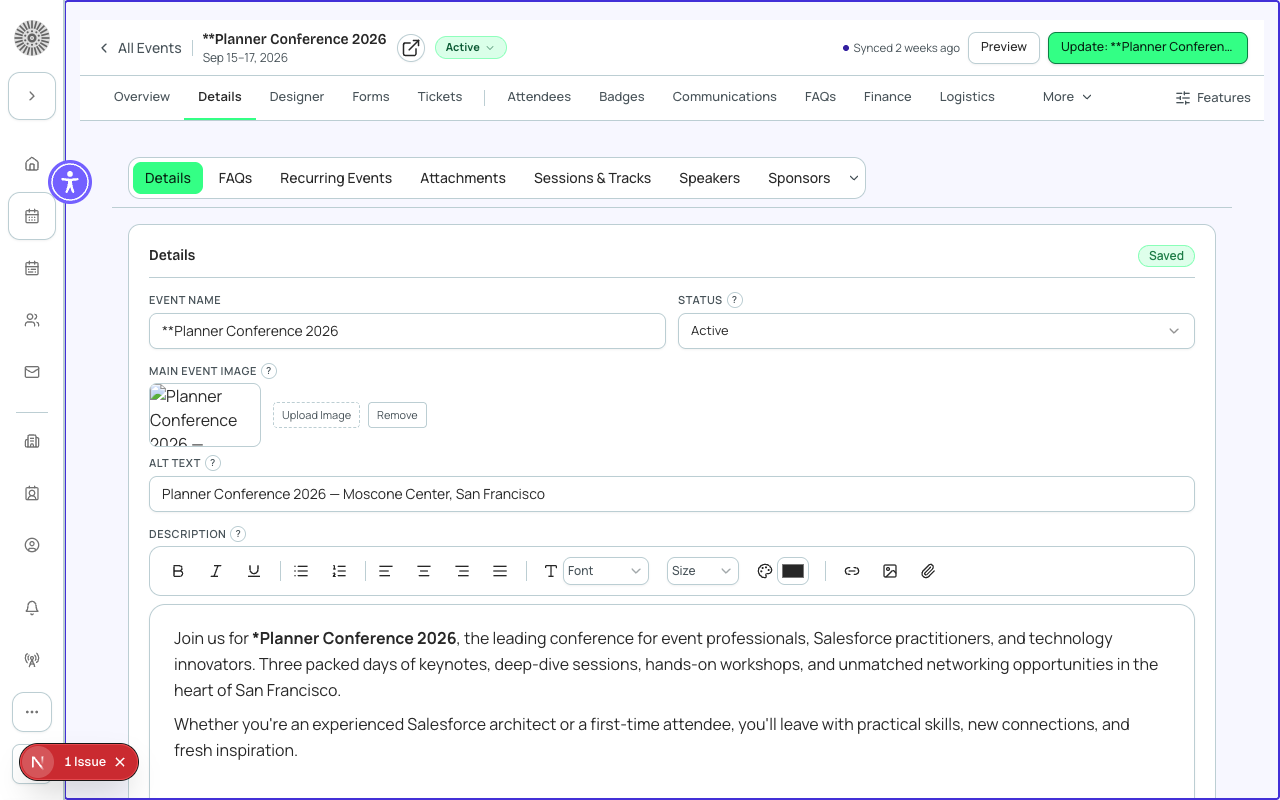
Event configuration lives in two places. The Event Details tab edits the event record itself (name, dates, location, capacity). The Configuration page (Manage > Settings, titled Event configuration) edits the Event Settings record the event points to. Both are stored in Salesforce and Forge reads and writes them live; the Salesforce object is `conference360__Event__c` for the event and `conference360__Event_Settings__c` for the settings record.
An Event Settings record is shared. Many events can point at the same record, so changing a field on it changes every event that uses it, not just the one you are looking at. Event Settings applied at the Event Group level override the event-level record. To change one event only, pick or create a different Event Settings record for it (Global Options > Event Settings > Clone) and select that record on the event.
Quick start: for a normal paid or free event, set Name, Start and End, Timezone, Location Type, and Attendee Limit on Event Details; leave every Configuration section at its default; then add tickets and publish. Come back to Configuration only when you need a specific behavior from the tables below.
Event Details tab
Basics
| Field | What it controls | Values | Recommendation |
|---|---|---|---|
| Event Name | The public title of the event. Required. | Free text. | Use the name attendees will recognize. It appears on the event page and in emails, so avoid internal codes. |
| Status | Internal status of the event. Moving to Canceled asks for confirmation and takes effect in Salesforce immediately. | Draft, Active, Canceled, Completed. | Keep Draft while you build. Set Active when the event is ready: publishing is blocked unless the event is Active. Use Completed after the event and Canceled only when the event will not run. |
| Publish (Visible) | Makes the event reachable by its public URL and listed on public groups and lists. While off, the event is only reachable by its preview URL. Controlled with the Publish / Update button on the event header. | On or off. | Publish only after tickets, forms, and communications are configured. Publish needs Status = Active and a Start Date. When Require At Least One Ticket To Publish is Yes in the event settings (Advanced section), it also needs at least one ticket-type item; Donation, Guest, and Product items do not count. |
| Description | Rich-text description shown on the event page. | Rich text. | Include enough detail for people to find and register for the event. Do not paste images into it; use the Main Event Image. |
| Short Description | A one-line summary used where a short description is shown, such as the Event Group list. | Text. | Write one sentence if the event belongs to a group listing; otherwise leave empty. |
| Main Event Image and Alt Text | The hero image for the event. Alt text is required whenever an image is set. | Image upload plus alt text. | Always write alt text that describes the image for screen-reader users. |
| Record Type | The Salesforce record type of the event. Shown only when your org has more than one. | Record types available to you. | Use your org's standard type unless your admin has set up types with different layouts. |
| Event Organizer | The organizer whose name appears on the event page. Can be a Salesforce Contact or Account, picked by search, and is visible to registrants. | A Contact or an Account. | Pick the person or organization attendees should see as the host. Use Remove organizer to clear it. |
| Event Settings | Which Event Settings record this event uses. The default record is marked Default. | Any Event Settings record in your org. | Leave on Default unless this event needs different registration, ticketing, or display behavior. Create a new record rather than editing a shared one for a one-off event. |
| Event Group | Links related events (a series or program). The primary group controls which list the event appears in. Assign or change it from Manage groups. | An Event Group or none. | Assign a group when events should appear together on one listing. |
Date and time
| Field | What it controls | Values | Recommendation |
|---|---|---|---|
| Start Date and Time | When the event begins. Drives calendar links and publish eligibility (a start date is required to publish). | Date and time in the event's timezone. | Set this before anything else; session times and relative email schedules are measured from it. |
| End Date and Time | When the event ends. | Must be after the start. | Set the real end time. Leaving the end before the start is rejected. |
| Timezone | The timezone the event's dates and times are shown in. | An IANA timezone such as America/New_York. | Set the timezone where the event happens, not where you work, so attendees see the right local time. |
| Reschedule event | Shifts the event dates and its sessions by a number of days. Times of day never change. | Whole days from -30 to 30 (negative moves earlier). Sessions: All sessions, or Future sessions only. | Use this to move a whole event instead of editing every session. Check the preview before confirming. |
Location
| Field | What it controls | Values | Recommendation |
|---|---|---|---|
| Location Type (Format) | Whether attendees gather in person, online, or both. Controls which of the fields below appear. | In-Person, Virtual, Hybrid. | Choose Hybrid when you will have both a venue and a meeting link. Virtual and Hybrid show a Webinar or Meeting Account and a Meeting URL; In-Person and Hybrid show venue fields. |
| Venue Name, Street, City, State or Province, Postal Code, Country | The physical address. A View on map link is generated from it. | Free text; Country is a picklist. | Fill every line so the map link and calendar location are correct. When creating the event you can instead pick a Venue Account and its billing address fills the venue fields. |
| Webinar or Meeting Account | The connected video provider for virtual and hybrid events (for example Zoom). Required for Virtual and Hybrid; the location form will not save without it. | An account connected under Webinar Accounts. | Connect the account first if none is listed (Manage webinar accounts). Once an account is chosen and the event has a start and end, saving creates the meeting and fills in the link. |
| Meeting or Webinar URL | The join link shown to registered attendees. | URL. | Let Forge generate it from the linked account when possible, or paste your own link from your video tool. |
Registration and capacity
| Field | What it controls | Values | Recommendation |
|---|---|---|---|
| Attendee Limit (Total Capacity) | The overall cap on registrations for the event. By default Salesforce recalculates it as the sum of every ticket's Quantity Available, but a value you type directly overrides that. | Whole number; blank means Unlimited. | Leave blank and cap capacity per ticket for most events. Set it directly only when the event has a hard room limit smaller than the sum of tickets. After you save, check the value shown: it can be recalculated when tickets change. |
| Waitlist | When on and no seats remain, people can still register but are waitlisted instead of turned away. | On or off. | Turn on for events that regularly sell out. Waitlist emails are set up on the Communications tab. |
| Max Waitlist Size | Caps how many people can be on the event waitlist. | Whole number; blank means unlimited. | Leave blank unless you cannot serve a long waitlist. |
Registration Start Date, Registration Start Time, and Registration End Date exist on the Salesforce event but are marked Deprecated. To control when people can buy, set each ticket's Sale Start and Sale End instead (see Ticket and Item Settings).
Cancellation and confirmation
| Field | What it controls | Values | Recommendation |
|---|---|---|---|
| Cancel Before Date and Time | The deadline for cancellations. | Date and time. | Set it if you have a refund or cancellation cutoff; it only matters when attendees can cancel (see Enable Cancel Registration below). |
| Registration Success Message | Message shown after someone registers. | Rich text. | Use it for next steps, such as how to find the attendee link. |
| Redirect URL and Redirect Button Label | Where people are sent after registering, and the label of the button that takes them there. The label applies when a success message is used. | URL; text. | Use a redirect for a thank-you or members page on your own site. Always set a label if you also show a success message. With confirmation parity on, the confirmation also lists the order totals and sends people to a secure (https) or same-site redirect after five seconds; the button always works. |
Payments
| Field | What it controls | Values | Recommendation |
|---|---|---|---|
| Payment Gateway (Tickets and Products) | The gateway that processes payment for tickets and add-on products. Set at Manage > Tickets > Configuration. | A connected payment gateway. | Set before you publish a paid event. Gateways that are not connected are shown as Not connected and cannot be chosen. |
| Donation Payment Gateway | A separate gateway for donations at checkout. Left empty, donations use the tickets gateway. | A connected gateway, or none. | Only set a separate one if donations go to a different account. It should be the same payment processor as the main gateway. |
Configuration page
The Configuration page is an accordion. Most used opens by default; the other sections are collapsed. Edits stay pending until you choose Save in the sticky Save and Discard bar. Labels and the short help text under each field come from the Salesforce field definitions in your org, so they can differ slightly from the wording here.
Most used
| Field | What it controls | Values | Recommendation |
|---|---|---|---|
| Event name, Timezone, Start date and time, End date and time, Max capacity | The same event fields as on Event Details, repeated here for convenience. | As above. | Edit in whichever place you are already working; both write the same record. |
| Allow waitlist when full | Turns the event waitlist on. | On or off. | See Waitlist above. |
| Automated waitlist emails (Waitlist Automate) | Whether the next waitlisted attendee is moved to Pending automatically when someone cancels or otherwise stops attending. Lives on the shared Event Settings record, so changing it asks you to confirm and affects every event that uses the record. | On, Off, Not set. | Turn On to fill cancelled seats automatically. The two email pickers below it (Email when status is Waitlist-Pending, Email when status is Pending) only send automatically while this is On. |
| Email when status is Waitlist-Pending and Email when status is Pending | The email templates sent when an attendee lands in each of those waitlist states. | Any email template, or None. | Pick a template for each so waitlisted people hear from you. Leaving None sends nothing for that state. |
| Show attendee count publicly | Sets the event's attendee visibility to Public (on) or Private (off). | On or off. | Leave off for private or invite-only events. |
Registration
Checkout behavior
| Field | What it controls | Values | Recommendation |
|---|---|---|---|
| Block Duplicate Registrations | Stops someone who registers twice in a row from registering again when the first registration is complete or in process. | On or off. | Turn on for single-seat events where a double click or resubmit would create a duplicate. |
| One Unique Attendee Email Per Event | Allows only one attendee per email address on the event when an attendee is saved. | On or off. | Turn on when each person must have their own email. Leave off if a parent or assistant registers several people with one email. |
| Disable Checkout As Someone Else | Hides the Someone else option in the contact section of checkout. | On or off. | Turn on if people may only register themselves. |
| Auto Redirect Users to Confirmation Page | Sends signed-in or invited users who already registered straight to their confirmation page. | On or off. | Turn on for invite-only events so returning guests land on their confirmation. |
| Remove Info Page for Free Events | Hides the last checkout page (extra contact or payment details). Only works on free events. | Yes, No. | Turn on for free events that need only the basics, to shorten checkout. |
| Hide Main Contact Address and Hide Main Contact Company Name | Hides those fields for the main contact during checkout. | Yes, No. | Hide them if you do not need them; fewer fields means more completed registrations. |
| Display Donations and Products separately | Shows Donations and Products on their own pages during checkout. | Yes, No. | Turn on only if a single page feels crowded. |
| Enforce Phone Format and Block Guest Edit Deadline | Org-defined checkout controls. See the inline help beside each field in the app for the exact behavior in your org. | Per field. | Leave at default unless your Salesforce admin asks you to change them. |
Cancellation and waitlist
| Field | What it controls | Values | Recommendation |
|---|---|---|---|
| Enable Cancel Registration | Lets attendees cancel their own registration. | Yes, No. | Turn on if you allow self-service cancellations; pair with a Cancel Before date. |
| Ticket cancellation message | Replaces the default message shown when a ticket is canceled. | Rich text. | Use it to explain your refund policy. |
| Waitlisting: Automate | Moves the next waitlisted person to Pending when a seat opens. | Yes, No. | Turn on if you want seats refilled automatically. Same setting as Automated waitlist emails above. |
| Waitlist Message | Message shown after checkout to people who were waitlisted. | Rich text. | Say what happens next and whether they will be emailed. |
| Disable Email Check For Waitlisted Guest | Lets waitlisted guest tickets be created without an email address. | On or off. | Turn on only if you also set the Email field on the Guest ticket to Optional or Hidden. |
Day of event
| Field | What it controls | Values | Recommendation |
|---|---|---|---|
| Allow Walk-Up Registrations | Lets the mobile check-in app (standard or Kiosk Mode) register people who did not pre-register. When off, only pre-registered attendees can check in. | On or off. | Turn on for events with door sales; leave off for invite-only events. |
| Auto-update Attendance to No Show | After the event, registered attendees who were not marked Attended change to No Show automatically. | Yes, No. | Turn on to keep attendance reports clean without manual cleanup. |
| Badge Printing Configuration | Which badge printing setup the event uses. | A badge printing configuration. | Pick one only if you print badges on site. |
| Mobile Check-in Kiosk Mode Logo | The logo shown on tablet kiosks. Recommended 256 by 256 pixels or a proportional rectangle, up to 800 KB, PNG or JPG. | Image. | Use a small, clear PNG with a transparent background. |
| Kiosk Mode Post Check-In Message | The message a kiosk shows after a successful check-in. | Text. | Keep it short, such as a welcome and where to go next. |
Forms and contacts
| Field | What it controls | Values | Recommendation |
|---|---|---|---|
| Form | The default registration form attached to the event. | A form. | Normally managed from the Forms tab; change it here only if you know which form you want. |
| Enable Forms v2 | Deprecated and no longer used. All forms use the current processing. | Ignored. | Ignore it. |
| Allow Form Responses for Attendee Group | When a registration has several attendees, lets the buyer copy the first attendee's answers to the others. Contact details are not copied. | Yes, No. | Turn on for group purchases where answers are usually the same. |
| Create Contacts for Guest Tickets | Creates Contact records for guest tickets. When off, guests get only Attendee records and no contact matching runs for them. | On or off. | Leave off to avoid creating contacts for people you only know as guests; turn on if you want guests in your CRM. |
Tickets and Pricing (Payments and Transactions)
| Field | What it controls | Values | Recommendation |
|---|---|---|---|
| Enabled Payment Methods | Which payment methods attendees can use on a paid event. Pay Later creates an order you invoice later. | Card, Pay Later, ACH, PayPal (any combination). | Select only the methods your gateway supports. Use Pay Later for invoiced corporate buyers. |
| Pay Later Payment Term | The payment term applied to Pay Later orders. | Upon Receipt, Net 7, 10, 15, 30, 45, 60, 90. | Match your invoicing terms. Only relevant when Pay Later is enabled. |
| Currency Display | How amounts are written. | Symbol ("$199.00") or ISO ("199.00 USD"). | Use ISO when attendees come from several countries that share a currency symbol. |
| Decimal Separator | The decimal mark. | . or , | Match your audience's locale. |
| Thousands Separator | The thousands mark. | , or . | Use the opposite of the decimal separator. |
| Negative Value Display | How negative amounts such as refunds appear. | - ("-10") or ( ) ("(10)"). | Use ( ) if your finance team reads accounting-style numbers. |
| Card Color Theme | Light or dark text on the card in the payment link. | Light, Dark. | Choose Dark if your card background is light, and the reverse. |
Email and Communications
| Field | What it controls | Values | Recommendation |
|---|---|---|---|
| Send Email From | The sender address for emails sent from Salesforce for this event. Only org-wide email addresses are accepted; otherwise the sender falls back to the current user. | An org-wide email address. | Forge's own emails use the trigger settings on the event's Communications tab (see Email and Communications Settings). Set this only if you also send from Salesforce. |
| Greeting Name Formality | How the first-name greeting is built when you use it as a merge field in templates. | Formal, Informal First, Informal Full. | Pick Informal First for friendly events and Formal for conservative audiences. |
| Send Block Guest Confirmation Emails | Controls whether guests receive confirmation emails. See the inline help in the app for exact behavior in your org. | Per field. | Leave at default unless guests should not be emailed. |
Attendee Mobile App and Portal (Navigator)
| Field | What it controls | Values | Recommendation |
|---|---|---|---|
| Show Profile, Show Ticket, Show Attendees, Show Map | Show or hide those sections in the Event Navigator mobile app. | On or off (default on). | Turn off sections you do not want attendees to use, such as Attendees for privacy. |
| Show Agenda | Shows the agenda in the mobile app and the attendee web portal. The agenda's Publish action toggles it. | On or off. | Leave the agenda unpublished until sessions are final. |
| Event Navigator Logo | The logo shown in the Navigator app. | Image. | Use your event or organization logo. |
Audiences (Attendee Link)
Attendee Link is the personal link each attendee gets. Before registration it works as a pre-filled form for invited guests; after registration it is a hub for tickets, sessions, and profile edits.
| Field | What it controls | Values | Recommendation |
|---|---|---|---|
| Allow Edits to Attendee Fields | Lets attendees edit their registration answers on their Attendee Link (not name or email). | On or off. | Turn on if attendees often need to correct details. Use Editable Attendee Link Fields to limit which fields. |
| Editable Attendee Link Fields | Restricts which fields attendees may edit. | Field list. | List only the fields you want editable. |
| Disable Not You | Hides the Not you button on Attendee Link invites. | On or off. | Turn on for invite-only events so a forwarded invite cannot be used to register someone else. |
| Invitee Verification Method | What non-signed-in users must pass before they can register. | None, Attendee Email Match. | Use Attendee Email Match to ensure only the invited email can register. |
| Allow AttendeeLink Self-Service Edit | Lets attendees edit their profile and registration answers from the Forge attendee portal, independent of Allow Edits to Attendee Fields. | On or off. | Turn on for the Forge portal. Set a cutoff so edits stop at a sensible time. |
| AttendeeLink Self-Service Cutoff Date | After this date and time self-service edits stop, even when the toggle is on. | Date and time; blank means no cutoff. | Set it a few days before the event so data is stable for badges and catering. |
| Enable Add to Wallet from AttendeeLink | Lets users add their ticket and QR code to their mobile wallet. | Show, Hide. | Show for events with QR check-in. |
| Add to Google Wallet | Turns Google Wallet on or off for the event. | On or off. | Turn on alongside Add to Wallet if you want Android users covered. |
| Enable Add Sessions to Calendar | Lets people add individual sessions to their calendar with Add to Calendar. | On or off. | Turn on for multi-session events. |
| Hide QR from AttendeeLink | Hides the QR code from the Attendee Link after checkout. | Yes, No. | Hide it if you do not use QR check-in. |
| Remove URL from Attendee Links | Deletes attendee webinar join links when the event's webinar URL is cleared. | Yes, No. | Turn on if you replace the meeting link and do not want old links to linger. |
| Field API Name for Attendee List Groups | Groups the attendee list on the web app and Navigator by a standard or custom attendee field. | A field's API name. | Use a field such as company type if you want grouped attendee lists. |
| Direct Messaging | Whether attendees can message each other. | Always, Hide. | Hide it for events where networking messages are not wanted. |
| Allow Ticket Swaps | Lets attendees swap their ticket for another ticket at the same price through their Attendee Link. | On or off. | Turn on if people often pick the wrong ticket. Swaps are only between same-price tickets. |
| Allow Session Swaps | Lets attendees swap one registered session for another. | On or off. | Turn on for events with limited session seats and changing plans. |
Public Event Page
These display settings apply to the older Tabbed and Dynamic page layouts. They do not affect events built with the Page Designer layout.
| Field | What it controls | Values | Recommendation |
|---|---|---|---|
| Overview Pricing | Shows each ticket type's name and price on the overview. | Yes, No. | Turn on for events with a few clear ticket tiers. |
| Hide Price Range | Hides the price range on the overview. | Yes, No. | Hide it when prices vary by audience. |
| Show Sold Out Tickets | Keeps sold-out tickets visible. Waitlisting applies only if configured for the event. | On or off. | Turn on if you offer a waitlist so people can find it. |
| Show Expired Tickets | Keeps tickets past their sale end visible but not purchasable. When off they are hidden. | On or off (default on). | Turn off to avoid showing early-bird tiers after they end. |
| Enable Social Sharing | Shows a Share button on the event page. | On or off. | Turn on for public events. |
| Facebook, Instagram, LinkedIn, Twitter, YouTube | Links shown on the event page when filled in. | URLs. | Fill only the accounts you actively use. |
| Page Layout | One page or tabbed layout. | One-Page, Tabbed. | Use One-Page for short events and Tabbed for content-heavy ones. |
| Attendees, Sponsors, Speakers, Sessions, Tracks, FAQ, Venue, Content, WiFi, Contact Us, Custom Tabs, Social Wall | Visibility of each tab. Pre-registration and post-registration options are for Event Portal customers. | Always, Hide, Post-Registration (Social Wall: Always, Hide). | Hide a tab that has no content. Use Post-Registration for content only registered attendees should see, such as WiFi. |
| Contact Us Label | Overrides the Contact Us label. Marked Deprecated. | Text. | Leave blank. |
| Search Bar | Adds a search bar for sessions, speakers, and FAQs. | On, Off. | Turn on for events with many sessions. |
| Sponsor Tiers | Which sponsor tiers are available. | Platinum, Gold, Silver, Bronze (multiple). | Select only the tiers you sell. |
| Ad Display Method | How long each ad shows before cycling. | Cycle every 5, 10, 15, 30 seconds, or 1, 2, 5, 10 minutes. | Use a longer cycle for ads with more text. |
| Primary Color and Background Color | The theme colors as hex codes without the # sign. | Hex, for example 7360FF. | Use your brand color; check that text stays readable on it. |
| Font | The font used on the event page and checkout. | A supported web font (for example Lato, Montserrat, Open Sans, Poppins, Roboto). | Choose a legible font that matches your site. |
| Favicon URL and Custom CSS URL | Link to a custom favicon (16 by 16 pixels) and a custom stylesheet for events using this record. Without a favicon the default is used. | URLs. | Host both on your own CDN. Use CSS only for small tweaks. |
| Custom Label 1 to 4 and Custom URL 1 to 4 | Up to four extra links on the event page. | Text and URL pairs. | Use for links such as a parking map or code of conduct. |
Security
| Field | What it controls | Values | Recommendation |
|---|---|---|---|
| Enable Captcha | Shows a CAPTCHA at checkout. | On or off. | Turn on if you see bot or spam registrations. |
| Re-Captcha Enabled | Turns on reCAPTCHA for checkout and form submissions. | On or off. | Use for public events that attract spam. Enable only one of the two unless your admin says otherwise. |
Campaign Sync
The event can be linked to a Salesforce Campaign. When someone registers they are added as a Campaign Member (or their existing member status is updated, never duplicated). The Campaign link sits above these status pickers. If a status is blank, Salesforce uses the default shown.
| Field | What it controls | Values | Recommendation |
|---|---|---|---|
| Campaign Member Invited Status | Status set when the member is invited. | Text matching a status on your Campaign. | Leave blank to use Sent. |
| Campaign Member To Invite Status | Status while the invitation is pending. | Text. | Leave blank to use Sent. |
| Campaign Member Registered Status | Status when they register. | Text. | Leave blank to use Responded. Set a custom status such as Registered if your Campaign defines one. |
| Campaign Member Attended Status | Status when they attend. | Text. | Leave blank to use Responded, or set Attended. |
| Campaign Member Declined Status | Status when they decline. | Text. | Leave blank to use Responded, or set Declined. |
Status values must match a Campaign Member status that exists on your Campaign. Check them after you change a mapping.
Advanced
Advanced holds the raw Event Settings record, Relationship Settings, and a few groups that are rarely changed. Open it only for the items below.
| Field | What it controls | Values | Recommendation |
|---|---|---|---|
| Default (Event Settings record) | Marks this record as the default. Only one record can be default at a time; remove it from the other record first. | On or off. | Make your most common configuration the default so new events start right. |
| Require At Least One Ticket To Publish | Blocks publishing until at least one ticket-type item exists. | Yes, No. | Leave Yes to prevent publishing an event nobody can register for. Set No for events where registration is handled elsewhere. |
| Disable Auto-Add to Default Event Group | Stops new events from being added to the default Event Group automatically. | On or off. | Turn on if you manage groups manually. |
| Max Tables Per Event and Max Seats Per Table | Limits for table seating. Counts, never negative. | Whole numbers. | Leave blank unless you want hard limits. |
| Create Opportunity From Checkout | Creates a Salesforce Opportunity for each registration. | On or off. | Turn on if sales or advancement tracks event revenue as Opportunities. |
| Create Opportunities For Donations | Creates a separate Opportunity for each donation (two donations in a checkout make two Opportunities). | Yes, No. | Turn on only with Create Opportunity From Checkout. |
| Create Zero Dollar Opportunities | By default only checkouts over zero create Opportunities. When on, every checkout does. | Yes, No. | Turn on to track free registrations too. |
| Opportunity Record Type | Record type for created Opportunities. Blank uses the org default. | Text. | Leave blank unless you use a dedicated record type. |
| Opportunity Open Stage Name | Stage for pay-later checkouts. Must match a stage name exactly. | Text such as Prospecting. | Match your pipeline stage spelling. |
| Opportunity Successful Stage Name | Stage for successfully paid checkouts. Must match exactly. | Text such as Closed Won. | Match your closed stage. |
| GTM Container ID | Loads Google Tag Manager on event pages and embedded registration. Overrides the org-level GTM. | For example GTM-ABC1234. | Set only if this event needs its own tag container. |
| Date Format | The date format on the event page. | MM/DD/YY, MM/DD/YYYY, DD/MM/YY, DD/MM/YYYY, YY/MM/DD, YYYY/MM/DD. | Match your audience's region. |
| Show 24 Hour Time Format | Shows times in 24-hour format. | Yes, No. | Turn on for audiences used to 24-hour time. |
| Hide Timezone | Hides the timezone label next to times. | On or off. | Turn on only if all attendees share one timezone. |
| Supported Languages, Source Language, Target Language, Language Selector | Which languages appear in the selector, the language the event is written in, the language the page opens in, and whether the selector is shown. English is supported by default. | Language picklists; selector On or Off. | Set Source to the language the event record and forms are written in. Turn the selector On only after you have chosen languages. |
| Countries To Exclude and Countries To Include | Controls which countries appear in the checkout country picker. If Countries To Include has any value, Exclude is ignored. | Multi-select; comma-separated list. | Use Exclude to remove a few countries; use Include when only a few are allowed. |
| Relationship Settings | Which Relationship Settings apply to attendees, invoices, transactions, payment methods and gateway customers for the event. Opens Admin > Relationship Settings. | A Relationship Settings record. | Leave at default unless your admin has separate rules per event type. |
| Data Dictionary Group | The Data Dictionary Group used for localization. | A group. | Leave blank unless you use data dictionary overrides. |
Event Group, Campaign, and Event Settings links
| Field | What it controls | Values | Recommendation |
|---|---|---|---|
| Campaign | Registrants are added as Campaign Members of this Campaign. Set from the Campaign Sync section. | A Salesforce Campaign. | Link a Campaign if you report on events in Salesforce campaigns. It is optional; events without a Campaign still create Attendee records. |
| Forge | SF Object | SF Field |
|---|---|---|
| Event record | conference360__Event__c | Name, Status__c, Visible__c (shown as Publish), Attendee_Limit__c, Event_Location__c (Virtual, Venue, Hybrid) |
| Date and time | conference360__Event__c | Event_Start_Date__c, Event_Start_Time__c, Event_End_Date__c, Event_End_Time__c, Time_Zone__c |
| Venue and meeting | conference360__Event__c | Venue_Name__c, Venue_Street__c, Venue_City__c, Venue_State_Province__c, Venue_Postal_Code__c, Venue_Country__c, Webinar_Account__c, Webinar_URL__c |
| Capacity and waitlist | conference360__Event__c | Attendee_Limit__c, Waitlist_Enabled__c |
| Settings record | conference360__Event_Settings__c | Looked up from Event_Settings__c on the event; shared by many events |
| CRM campaign | Campaign (standard) | conference360__Campaign__c (lookup) |
| Payment gateways | conference360__Event__c | Payment_Gateway__c, Donation_Payment_Gateway__c (lookups) |