Communications
Sending Emails
Forge sends email two ways. Automatic emails are triggered by registration activity and set up on the event's Notifications tab (see Email and Communications Settings). Everything else is sent from the Compose tab, which has three steps (Audience, Message, Review & Send) and can send immediately or at a scheduled time. This page covers the Compose tab, the Scheduled tab, and History.
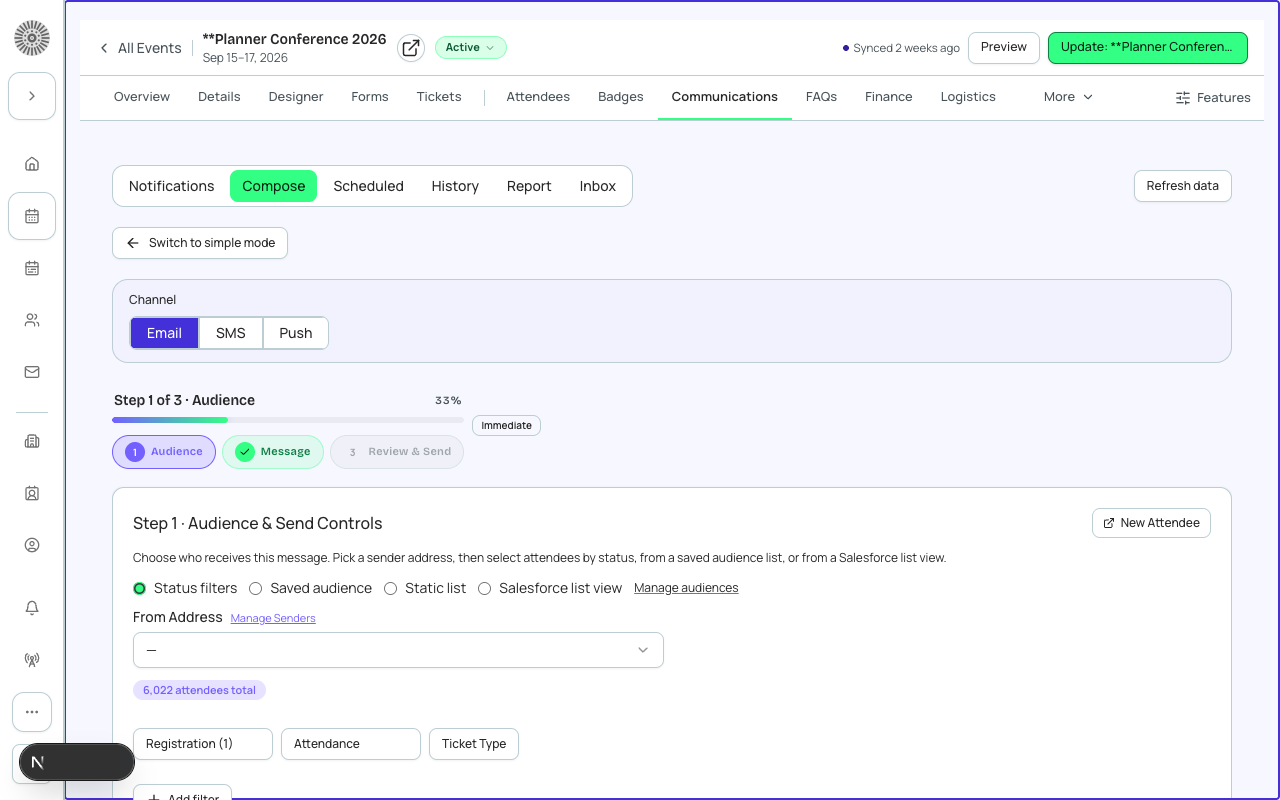
Email is the channel available by default. SMS and push options appear in the Compose tab only when those features are turned on for your organization.
Step 1: Audience
Choose a sender and who receives the message. You can continue once the audience is valid. Your progress is kept as a draft in your browser while you work.
| Setting | What it does | Recommendation |
|---|---|---|
| From address | The sender for this send, chosen from your verified senders. Manage Senders opens Admin > Email. | Pick the sender attendees expect. A send cannot go out without one. |
| Status filters | Selects attendees by Registration status and Attendance status, with live counts, and optionally by ticket (event item) and by custom field filters. The All option for Registration status leaves out Canceled, Declined and Rejected; tick one of those on its own to reach only those people. Unticking every status matches nobody. Nothing is selected by default except Registration status To Invite. | Check the match count before moving on. To email everyone registered, select the Registered status. To email people who did not show, filter on attendance. |
| Saved audience | Not offered in an event's Compose. An event's message only reaches that event's attendees, and anything saved earlier with an audience is limited to them when it sends. Elsewhere, sends to a saved audience (segment) built in the Audiences hub. Status shows Draft, Syncing, Ready, or Failed, with last synced time. A segment must finish syncing before you can send. | Use for repeat groups such as VIPs. Choose Refresh if you just changed it. |
| Salesforce list view | Not offered in an event's Compose (an event's message only reaches that event's attendees). Elsewhere, syncs a Salesforce list view of Attendees, Campaign Members, Contacts, or Leads into Forge as a reusable audience, then uses it. You can name the synced list. | Use when your team already defines the group as a list view in Salesforce. |
| Recipient preview | Shows the first records that match, with search, so you can sanity-check the audience. The search narrows the send as well as the preview, so clear it to go back to everyone who matches the filters. De-select a person's checkbox to exclude them from this send. | Spot-check a few names. Exclusions apply to the send even though the list is only a preview. |
The audience is worked out when the send runs, not when you save it. If you schedule a send for next week, people who register before then and match the audience are included.
Step 2: Message
| Setting | What it does | Recommendation |
|---|---|---|
| Message editor mode | How you write the email: pick a Template (a saved one, or a prebuilt Invite, Confirmation, Reminder, Cancelled or Thank You card that sends with an event subject, each recipient's name and event details filled in, and a button to their registration page), use the Rich text editor, or use the Builder (drag and drop). | Use a template for anything you will send more than once, rich text for a quick announcement, and the builder for designed emails. |
| Template | Chooses a template from your library. Manage Templates and New Template open the library. Preview Email renders it. | Choose a template whose subject and sender match this audience. |
| Subject | The subject line (rich text and builder modes). Tokens such as {{ATTENDEE_FIRST_NAME}} work. | Write the subject for the audience, not for yourself. |
| Preheader text | Short preview text shown next to the subject in most inboxes. | Add one helpful line. |
| Live merge preview | Shows the message for a chosen attendee of this event so tokens and data blocks resolve. | Open it before sending to catch blank tokens. |
Step 3: Review and Send
| Setting | What it does | Recommendation |
|---|---|---|
| Send now (One-off) | Delivers immediately when you click Send. Choosing a date and time instead schedules it for that moment; a past date is rejected. | Use Send now for urgent updates; schedule routine announcements for a time your attendees are awake. |
| Relative | Sends a set time Before or After the event start. You choose Direction (Before or After), Amount, and Unit (Days or Weeks). Quick presets: 1 Week Before and Day-After Thank You. | Use for reminders (1 week before) and thank-yous (day after). Relative sends are anchored to the event start date and time. |
| PDF attachments | Optionally attaches an Invoice receipt PDF (the checkout receipt per attendee group) and an Attendee itinerary PDF (sessions, tickets, VIP perks). Attendees without an invoice, and contacts and leads, receive the email without the PDF; the recipient audit flags each as "PDF not attached". | Leave both unchecked unless the message needs them. |
| Attach ICS | Adds a calendar file to the email. | Turn on for reminders so attendees can add the event to their calendar. |
| Send Test | Sends the message to an address you choose. Merge fields are not replaced in a test, so use Preview to check personalization. | Always send yourself a test and check it on a phone. |
| Confirm send | A final dialog shows the audience, channel, and From address, and estimates how many recipients will actually receive it after suppressed and bounced addresses are removed. It warns when more than one in four addresses are inactive, and when the audience has no recipients. | Read the net count. If many are inactive, clean your list before sending. |
Relative sends need the event to have a start date and time. Without one the schedule cannot be created.
Scheduled and History tabs
| Tab | What it shows | Recommendation |
|---|---|---|
| Scheduled | Sends that are queued, running, or paused, with their time, mode, and status. Open one for details. | Check here after scheduling to confirm the time. |
| History | Past and current sends with status, audience, created and completed times, sender, total sent and failed, run history, recent logs, and a per-recipient delivery log. A send's detail page has Cancel send for a scheduled send and Retry. | Use the delivery log to answer whether a specific person received an email. Cancel a scheduled send before its time if the content is wrong. |
Per-event email results (opens, clicks, bounces) are under Manage > Reports > Email; see Metrics and Deliverability.
Registration-triggered emails
Emails that fire when a registration changes (confirmation, waitlist, spot available, cancellation, attendance, receipt, and day-of) are not sent from Compose. They are switched on per event on the Notifications tab. They send immediately when the status changes, except Day-Of Welcome which goes on the morning of the event. Reminder and thank-you emails are scheduled from Compose with a Relative send.
Sending limits
- Each organization can send up to 100,000 emails per day. A send that would take you over the remaining allowance is refused; schedule very large campaigns across days.
- Bulk sends are blocked until your sending domain is verified in Admin > Email. Test sends use a fallback sender until then.
- Unsubscribed, suppressed, and bounced addresses are excluded automatically.
- If an administrator has paused sending in Admin > Email, queued emails wait and send when sending resumes.