Getting Started
Home Dashboard
Home is the first page after you sign in. It is a short, task-oriented page: pick up where you left off, see your events, and scan four portfolio numbers. This page explains what you will see on your first visit and how to read it. The Global Tour page for Home has the full reference.
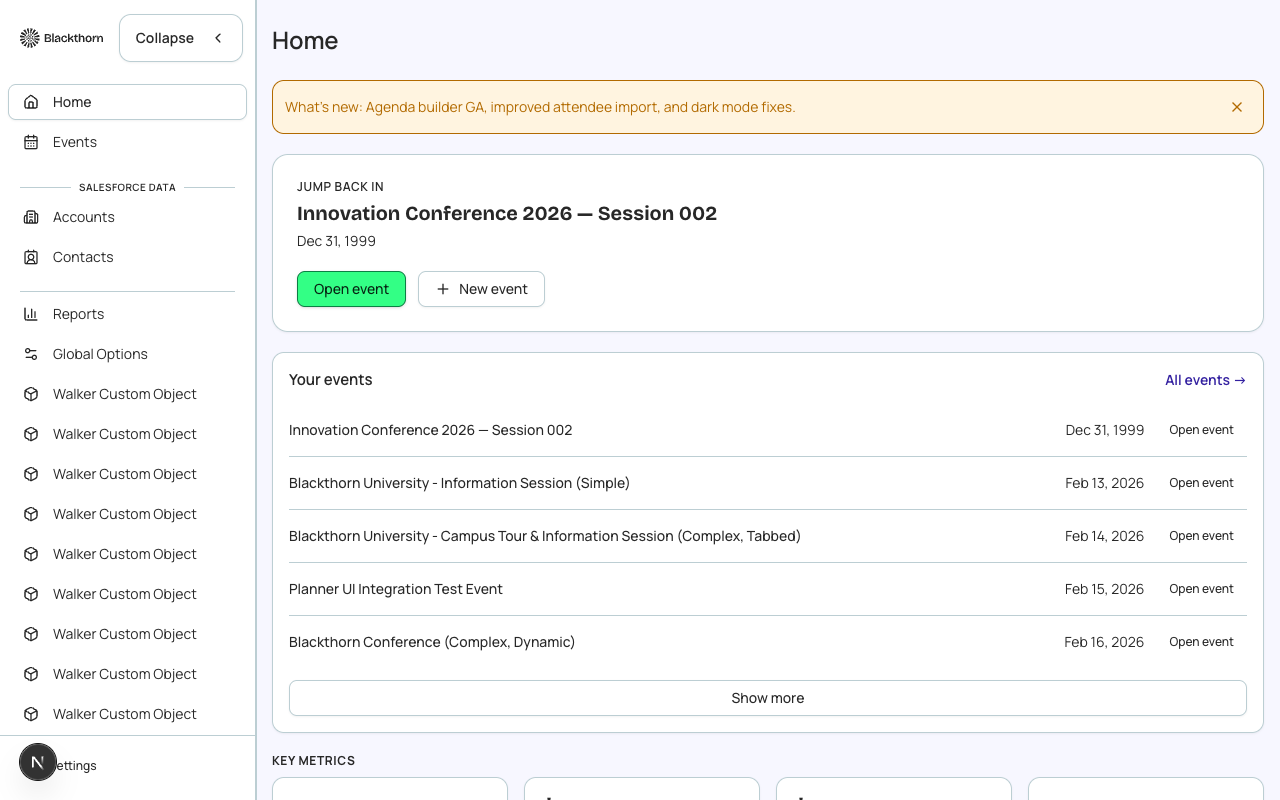
What you see first
| If you are... | You see... | Then... |
|---|---|---|
| An Admin | A Setup card with a count of required steps complete. Expand it for each open step. | Finish the four required steps: Salesforce connected, required Blackthorn apps installed, a verified Email Domain and a default From Address. |
| A Planner or Custom user | A Getting started card with two tracked rows (Finish the product tour, Create your first event) and shortcuts to the areas you can use. | Run the tour once, then create your first event. |
| Signing in to an org with no events | The Events list instead of Home. | Choose New Event. |
| In a production org that is not unlocked yet | The product tour followed by a waitlist page. | Your Customer Success Manager follows up. Use a sandbox meanwhile. |
The four numbers
| Tile | Counts | Common misreading |
|---|---|---|
| Registered | Attendee records across all registration statuses on the events in the summary (donation-only entries excluded). | It is not only people with status Registered. For that, use an event's Overview. |
| Revenue | Sum of order totals on those events. | Ordered amount, not cash collected. Cash is on Reports > Finance. |
| Forecasted revenue | Value of open opportunities connected to active events, from Campaign Sync. | Shows 0 until campaign sync is set up. |
| Active events | Events in the summary: not yet ended, plus recently ended. | Counts by date, not by the Status field. |
Freshness
The tiles come from a saved snapshot. The Updated label next to them shows its age. A snapshot older than 10 minutes is refreshed in the background when you open Home. Choose Refresh to force one, or Retry if it shows Unable to load metrics. A small failure in a background refresh never replaces the numbers you already see.
Home is for orientation. For exact figures use Reports (portfolio) or an event's Reporting tab (one event).
Navigating from Home
- Open event on the Jump back in card goes to that event's Overview. The card shows the last event you opened in this browser.
- Your events lists up to 20 events (recent first). Show more reveals the rest of those 20; All events opens the full Events list.
- The Salesforce link icon next to an event opens the event record in Salesforce.
- New event starts the creation wizard and returns you to Home when you finish.
Event names follow this order everywhere: public name, then name, then auto-number. Raw Salesforce IDs are never shown.