Getting Started
The Shell
The shell is the frame around every Forge page. On a desktop screen it is a left sidebar and the page content next to it. On a phone or a narrow window it becomes a slim top bar with a menu button that opens the sidebar as a drawer. Knowing what lives in the sidebar, the Settings menu and search gets you to any setting quickly.
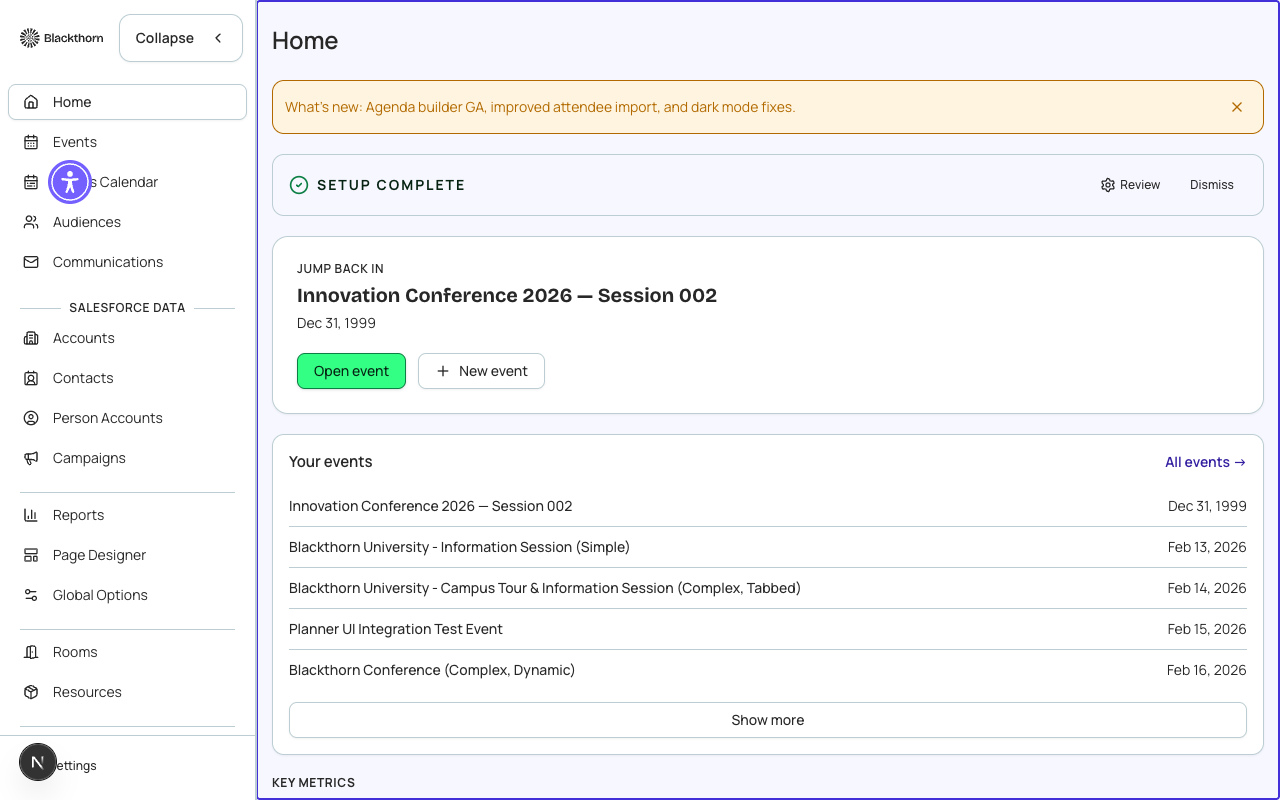
Left sidebar
| Item | Who sees it | Notes |
|---|---|---|
| Home | Everyone | Your dashboard. |
| Events | Everyone | The event list. An Event Group link sits beneath it. |
| Audiences | Everyone, unless an admin has turned on Disable Audiences | Saved recipient lists. |
| Salesforce Data (Accounts, Contacts, Person Accounts, Campaigns) | Only where an admin enabled them | Opt-in areas that show standard Salesforce records. |
| Reports | Everyone | Cross-event dashboard. |
| Global Options | Admins | Settings shared across events. |
| Admin | Admins | Setup and configuration. |
| Settings (gear) | Everyone | Preferences, help, and for admins Admin and Beta features. |
Other items, such as Rooms and Resources, Re-engage, Donations or Auctions, appear only when they are switched on for your org. Custom users see only the items their profile grants.
Collapsing and mobile
- Desktop: use the collapse button at the top of the sidebar to shrink it to an icon rail. Hover an icon to see its name. Choose it again to expand.
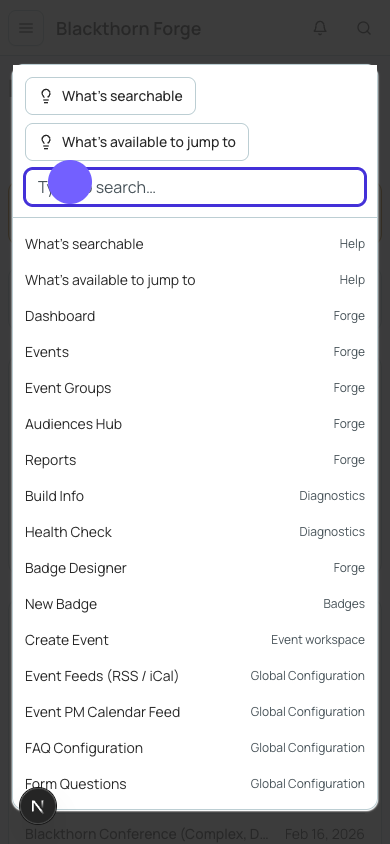
- Phone or narrow window: choose the menu button in the top bar to open the sidebar as a drawer, and the search icon to open search. The page title shows in the top bar.
- On subpages of Admin and Global Options, use the sidebar item (Admin or Global Options) to return to the parent page.
Settings menu
| Entry | What it does | Recommendation |
|---|---|---|
| Admin / Beta features (admins) | Open the Admin hub or the optional features page. | Check Beta features after a new release to see what you can switch on. |
| Help & feedback > Docs | Opens this guide. | Use the guide search for field-level help. |
| Help & feedback > Features & Bugs | The feedback board. | Report a bug with page address and steps. |
| Help & feedback > Restart Tour | Replays the product tour. | Useful when onboarding a new teammate. |
| Preferences > Theme | Light or dark mode for you only. Your choice is saved in your browser. | Pick dark mode for long sessions. |
| Preferences > Language | Display language for you only, saved in your browser. Hebrew and Arabic switch the whole layout to right to left. | Switching language does not change what registrants see on public pages. |
| Preferences > Accessibility widget | Shows or hides the accessibility toolbar and sets which corner it sits in. | Leave it on if anyone on your team uses it. |
| Preferences > Feedback widget | Shows or hides a floating feedback button. | Hide it on a projector. |
Search
Press Ctrl+K (Cmd+K on Mac) anywhere, or click the Search box at the top of the sidebar, then type at least two characters. Results are grouped: Events, Sessions, Attendees, Sponsors, Speakers, Tickets and Forms come from the synced copy of your Salesforce data (up to five each, with a See all event results row for events), Contacts and Accounts are searched live in Salesforce, and Pages, Global options, Admin tools, Event features and Documentation match names of Forge pages and guide articles. Move with the arrow keys, press Enter to open and Esc to close. The last five items you opened are offered first.
Banners you may see
| Banner | What it means | What to do |
|---|---|---|
| Session expiring soon | Your Salesforce session is about to end, with the time. Choices: Ignore, or Stay signed in. | Choose Stay signed in during a long edit; otherwise sign in again after it expires. |
| Your Salesforce connection has expired. Reconnect to continue. | The org's Salesforce authorization lapsed. A Reconnect button appears; if it still fails, an admin disconnects and reconnects under Admin > Salesforce. | Click Reconnect. If it fails, ask an admin. |
| Salesforce is temporarily unavailable. Showing cached data. Editing is paused. | Forge cannot reach Salesforce, so it shows its last saved copy and blocks edits. | Wait and retry; nothing you viewed is lost. |
| Salesforce rate limit reached | Salesforce is throttling requests. Forge retries on its own and shows the countdown. | Wait; avoid starting another large sync meanwhile. |
| You have view-only access to this section | Your Custom profile grants Read, not Write, for this area. | Ask an admin if you need to edit. |
| Blackthorn Events update available | The installed Blackthorn Events package is older than the version Forge needs. | Ask your Salesforce admin to upgrade the package. |