Global Tour
Home and Roadmap
Home is the first page after you log in. It shows the event you were last working on, a short list of your events, and four headline numbers across everything you can access. Use it to jump straight back into an event or start a new one.
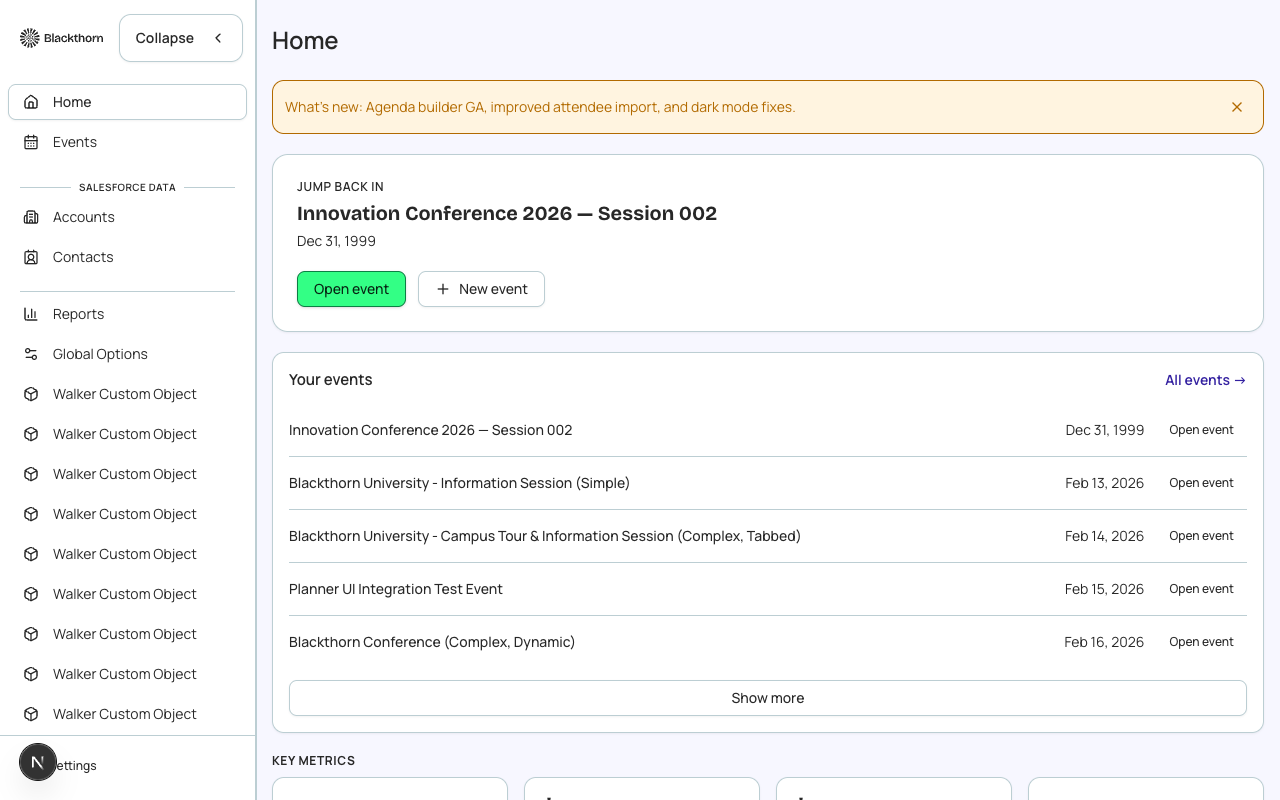
What is on Home, top to bottom
| Section | What it shows | Recommendation |
|---|---|---|
| Notice strip | A slim, dismissible message strip at the top (for example what is new in Forge). Dismissing it is remembered in this browser only. | Dismiss it once you have read it; it will not return on that browser. |
| Setup card (admins) | For Admin users: the setup checklist with a count such as 3/4 required steps complete. Expand it to see each open step with a Configure button. The card can be dismissed; the same checklist stays available at Admin > Setup. | Finish the required steps first: Salesforce connection, required Blackthorn apps, a verified email domain and a default From address. Payment Gateway, Users and Package Versions are optional. |
| Getting started card (planners) | For everyone who is not an Admin: a short list with a done count. Finish the product tour and Create your first event are the only two rows that track completion. The other rows are plain shortcuts to areas of Forge, with no done mark. | Planners: run Finish the product tour once, then create an event. Admins see the setup card instead, never both. |
| Jump back in | A hero card for the event you worked on most recently, with its date, location, a status badge and the buttons Open event and New event. A Salesforce link icon opens the event record in Salesforce. If you have never opened an event, it falls back to the first active or upcoming event. | Use Open event to land on that event's Overview. Recent activity is remembered per browser, so a different browser or device starts fresh. |
| Your events | Up to 20 events: ones you opened recently first, then active and upcoming ones. Five rows show at first; choose Show more for the rest. All events goes to the full Events list. Each row has a status badge and a Salesforce link icon. | For anything beyond these 20, use the Events list and its search. |
| Key metrics | Four tiles: Registered, Revenue, Forecasted revenue and Active events. A small Updated N minutes ago label and a Refresh link sit beside them. | Treat them as a portfolio pulse, not an audit. For exact figures open the event's own Reporting or the Reports page. |
What each metric counts
| Tile | How it is calculated | Watch out for |
|---|---|---|
| Registered | Attendee records on the events in the summary, across every registration status except donation-only entries. It is not limited to the Registered status. | Invited, Waitlisted and Canceled people are included in this total. For a Registered-only count, open the event's Overview or Attendees tab. |
| Revenue | The sum of order totals on those events (Salesforce Sales Document totals), as whole currency units. | This is ordered amount, not cash received. Cash actually captured, refunds and what is still owed are on the Reports > Finance tab. |
| Forecasted revenue | Total value of open opportunities connected to active events. It comes from Campaign Sync pipeline data and shows 0 until your events are connected to Salesforce campaigns. | To get a real number, turn on campaign sync for your events. Hover the info icon on the tile for the definition. |
| Active events | The number of events in the summary: events that have not ended yet, plus ones that ended recently. Cancelled and Draft events count if their dates fit. | This is a date-based count, not the same as events whose Status field is Active. |
The numbers are a saved snapshot from Salesforce, not a live query. The Updated label shows when the snapshot was taken. If it is more than 10 minutes old, Home refreshes it in the background once when you open the page. Choose Refresh to force it, or Retry if the tiles show Unable to load metrics.
To see only what changed today, do not rely on Home. Open Reports and set Timeline to Last 7 days, or open the event's Attendees tab and sort by registration date.
Event status badges
| Badge | Meaning |
|---|---|
| Active | The event's Status is Active. On the Events list the same status is shown as Published, with the tooltip This event is live and accepting registrations. |
| Draft | Still being set up. |
| Completed | The event is over. |
| Canceled | The event was called off. |
Status and publishing are separate: an Active event is only visible on its public page after you publish it from the event's Overview. See Statuses and Lifecycle for the full rules.
First login and empty orgs
- If you sign in to an org with no events yet, Forge sends you straight to the Events list instead of an empty Home, so you can create the first event.
- Production Salesforce orgs are unlocked by Blackthorn one customer at a time. Until yours is unlocked, you see the product tour and then a waitlist page that confirms Blackthorn has logged your name, email and org. Everyone else in that org sees the same page until it is unlocked, and your Customer Success Manager follows up. Sandbox and developer orgs are never locked, so you can start there today. A browser holds one Forge session at a time: if you sign into a different org (for example your LMO org) in the same browser, your earlier session ends, and the waitlist page shows a banner with a button to sign in again to the org you want. In a production org, deleting records is allowed by default. An admin can switch it off with Allow deletes in this production org on Admin > Forge Access; while it is off, Delete is greyed out with a link to Forge Access.
Common goals
| To achieve this | Do this |
|---|---|
| Resume yesterday's work | Open the Jump back in card. Home remembers the last event you opened in this browser. |
| Start a new event | Choose New event on the hero card or on an empty Your events list. Choose Create from scratch or Clone existing event in the wizard. |
| Find an older event | Choose All events, then use the search box on the Events list or press Ctrl+K (Cmd+K on Mac) and type the name. |
| Check portfolio revenue | Read Revenue and Forecasted revenue on Home, then open Reports for a breakdown by event and period. |
| Replay the walkthrough | Open Settings in the left sidebar, then Help & feedback > Restart Tour. |
Roadmap
A Roadmap link appears in Settings > Help & feedback only when an admin has turned the Roadmap feature on from the Beta features page. It is opt-in and not part of the standard navigation, so most orgs will not see it. See the Roadmap page under Beta features for details.
Home reads events and orders through your Salesforce user, so you only see the events and records your Salesforce permissions allow. Event data lives in conference360__Event__c, and order totals come from bt_stripe__ sales documents.