This page lists the Salesforce fields Forge reads and writes for each major object, what each one does, and our recommendation for how to set it. Use it to verify field-level security, check page layouts, or understand what changes when you edit a record in Forge.
☁
API name convention
All custom fields listed here are prefixed with their package namespace in your org: conference360__, bt_stripe__, bt_base__ or bt_fundraising__. For example, the event start date is conference360__Event_Start_Date__c in SOQL and Apex. Labels are the Salesforce field labels; Forge shows the same labels on screens that read from your page layout.
Event (conference360__Event__c)
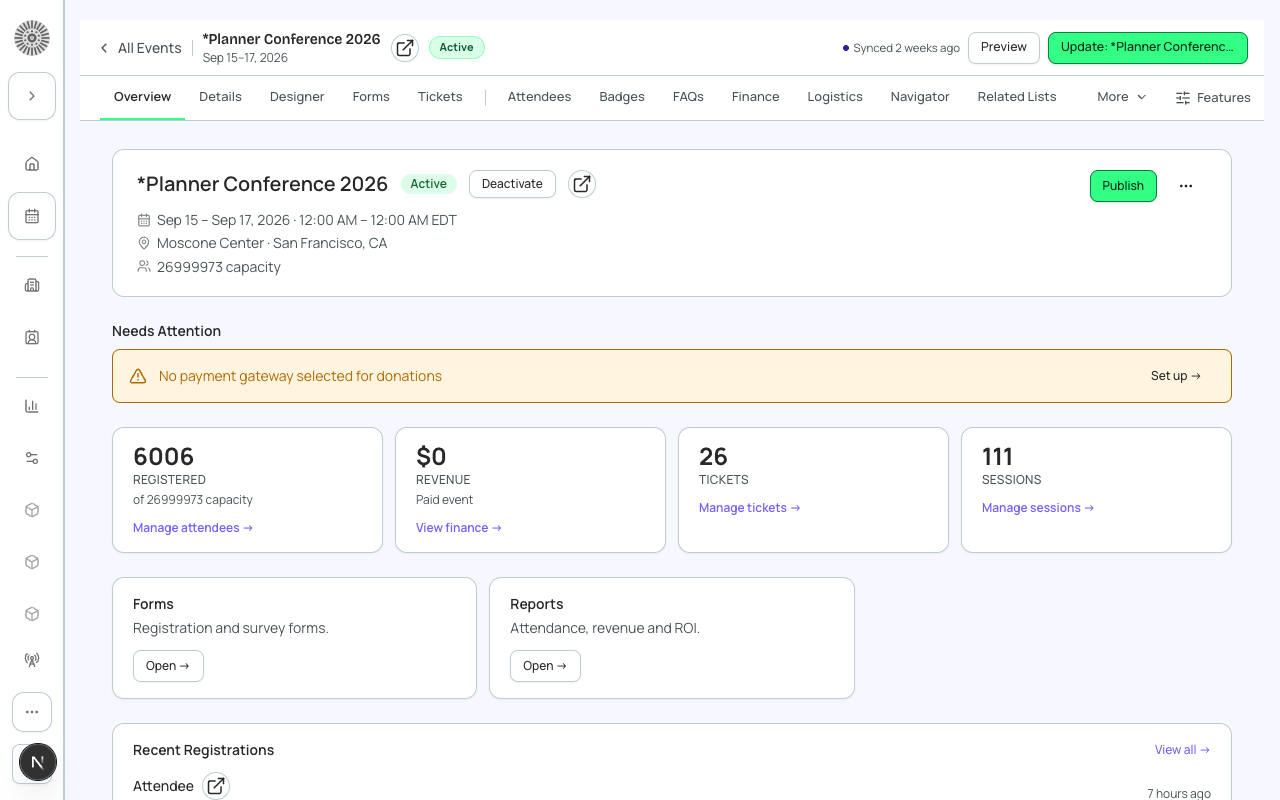
The Event Info tab in Forge maps to fields on conference360__Event__c in Salesforce.
Internal status of the event. Salesforce defaults a new event to Active; Forge's create wizard saves it as Draft until you publish.
Build in Draft. Set Active only when tickets, dates and location are ready, because Forge refuses to publish an event that is not Active.
Publish
conference360__Visible__c
Checkbox
When checked, the event is reachable through its public event URL and appears on public groups and lists. When unchecked it is reachable only through its preview URL.
Use the Publish button in Forge rather than ticking this by hand. Publishing from Forge also tells the public page to refresh.
Event Location
conference360__Event_Location__c
Picklist: Virtual, Venue, Hybrid
The event format. Forge writes Venue when you choose In-Person, and uses the value to decide which location fields to show.
Do not add or rename values. Reports and merge fields rely on these exact words.
Hide Register Button
conference360__Hide_Register_Button__c
Picklist: Yes, No
If Yes, the registration button is hidden on the event page. Forge has no screen for this field.
For an event where the planner registers every guest, set it to Yes in Salesforce (or ask an admin to add it to Event Info with Customize fields) and leave Publish unchecked if the event should not be listed.
Total Capacity
conference360__Attendee_Limit__c
Number
The cap on registrations for the whole event. Salesforce re-sums it from every ticket's Quantity Available each time a ticket is created or edited; a value you enter directly can be replaced the next time a ticket is saved.
To let tickets drive capacity, leave it alone and set quantities on tickets. For a hard event-wide cap, enter it after you finish ticket edits and check it again afterwards.
Time Zone
conference360__Time_Zone__c
Picklist of IANA time zones
The time zone that the event's start and end are expressed in.
Set it to the venue's zone for in-person events. Salesforce computes the GMT date-time fields from it.
Campaign
conference360__Campaign__c
Lookup (Campaign)
Registrants are added to this Campaign as Campaign Members. If they were added from the Campaign first, their status is updated rather than duplicated.
Link a Campaign if you report on events through Campaigns. Check that the Campaign Member status values on the Event Settings record exist on the Campaign.
Primary Event Group
conference360__Event_Group__c
Lookup (Event Group)
The primary group for the event. Group membership itself lives on Event Group Association records.
Change groups from the event's Event Group page in Forge so associations stay in step.
Event Settings
conference360__Event_Settings__c
Lookup (Event Settings)
The shared settings record that holds checkout, visibility and display rules.
Point events that should behave the same at one record. Create a separate record for an event that needs different rules.
Fields Salesforce recalculates after Forge saves
Forge writes through the normal Salesforce APIs, so triggers in the Blackthorn packages run. A save can succeed and still store a different value than the one sent. These are the cases that matter most for admins.
Field
What Salesforce does after the save
What to do
Attendee Registration Status
If the event or ticket is at or over capacity, a status of Registered (or Pending or blank) is stored as Waitlisted - Pending, even though the save reports success.
After registering or importing attendees at capacity, check the status. Raise the ticket Quantity Available or event Total Capacity first if you want them registered.
Event Total Capacity
Re-summed from every ticket's Quantity Available whenever a ticket is created or edited.
Finish ticket edits before you set a manual cap, and check it afterwards.
Read-only in practice. Do not write them from Flows or imports.
GMT date-time fields on events, sessions and ticket sales windows
Recomputed from the date, time and time zone fields on every save.
Edit date, time and Time Zone only. Keep the GMT fields off page layouts and reports, as their own help says.
Event Currency
Set to USD when blank if your org's currency-required validation setting is off.
Set Currency explicitly on any event that is not in USD.
Event Group
Event Group Association records are created and removed automatically. Writing the field blank can re-fill it from another group the event still belongs to.
Change group membership on the event's Event Group page, or delete the association record, instead of clearing the field.
Attendee First Name, Last Name, Email and Phone
The package copies between the older fields and the newer First Name, Last Name, Email and Phone fields whenever one is blank.
Use the non-deprecated fields (the ones without (Deprecated) in the label) in new reports and Flows.
Attendee Source
Stamped Web App on an insert through the API when blank.
Use Source to separate Forge-created attendees from imports and Salesforce UI entries.
Attendee Event Description
Overwritten from the event's Description every time the attendee is saved.
Do not use it for notes. Edit the event's Description instead.
Invoice Net Amount, Subtotal, Total Amount and Discount Amount
Rolled up from the invoice's line items. A value written directly on an invoice with no line items is stored as 0.
The most registrants the session can hold. The older Capacity field is deprecated.
Set it to the room size. Leave blank for unlimited.
Status
Salesforce's help text says to set it to Active for the session to be visible.
If a session is missing from an agenda, check Status and its start date before anything else.
Visibility Control
Shows or hides the session by matching the Contact's Visibility Control value.
Use it for member-only or VIP-only sessions; the Contact needs a matching value.
Location (Room_Text)
Free-text room or directions. Separate from the Room lookup, which picks a room from the org's room library.
Use the lookup if you share rooms across events, free text otherwise.
Ticket / Item (conference360__Event_Item__c)
Salesforce Field Mapping
Forge
SF Object
SF Field
Item name
conference360__Event_Item__c
conference360__Item_Name__c (Public Item Name)
Parent event
conference360__Event_Item__c
conference360__Event__c
Price
conference360__Event_Item__c
conference360__Price__c
Free ticket (no charge)
conference360__Event_Item__c
conference360__Free__c
Type (Main event ticket / Donation / Guest / Other)
conference360__Event_Item__c
conference360__Type__c
Status (Planned / On Sale / Sold Out / Closed / Unavailable)
conference360__Event_Item__c
conference360__Status__c
Quantity available
conference360__Event_Item__c
conference360__Quantity_Made_Available__c
Sold quantity (Registered)
conference360__Event_Item__c
conference360__Sold_Quantity__c
Registration form
conference360__Event_Item__c
conference360__Form__c
Sales start date
conference360__Event_Item__c
conference360__Sales_Start_Date__c
Sales end date
conference360__Event_Item__c
conference360__Sales_End_Date__c
Sort order
conference360__Event_Item__c
conference360__Sort_Order__c
Visibility rule
conference360__Event_Item__c
conference360__Visibility_Rule__c
Field (Forge label)
What it does
Recommendation
Status
Salesforce's help text says to set it to On Sale when you are ready for people to purchase. Forge's ticket list shows a calculated Open, Sold out or Closed pill, which is separate.
Keep Planned while you configure, then set On Sale at launch. Use Unavailable to pull a ticket without deleting it.
Free
Marks the ticket as free; no Price is needed.
Tick Free for free tickets instead of relying on a price of 0.
Quantity Available
The number of this ticket you can sell. Blank is stored as 999999 (unlimited).
Set it for every capped tier. It also feeds the event's Total Capacity.
Hidden
Hides the item from event checkout.
Use for tickets that should not be offered in public checkout.
Maximum Quantity
The most of this ticket one person can add to a cart.
Set to 1 for one-per-person tickets.
Attendee (conference360__Attendee__c)
⚠
PII on this object
conference360__Attendee__c stores the attendee's name, email and phone, and joins to a Contact or Lead. Forge fetches these fields just in time and keeps names, emails and phones out of its database cache. Make sure field-level security lets only authorized users read them.
Salesforce Field Mapping
Forge
SF Object
SF Field
First name
conference360__Attendee__c
conference360__First_Name2__c
Last name
conference360__Attendee__c
conference360__Last_Name2__c
Email
conference360__Attendee__c
conference360__Email2__c
Phone
conference360__Attendee__c
conference360__Phone2__c
Parent event
conference360__Attendee__c
conference360__Event__c
Ticket
conference360__Attendee__c
conference360__Event_Item__c
Registration status
conference360__Attendee__c
conference360__Registration_Status__c
Attendance status
conference360__Attendee__c
conference360__Attendance_Status__c
Contact link
conference360__Attendee__c
conference360__Contact__c
Lead link
conference360__Attendee__c
conference360__Lead__c
Waitlist record
conference360__Attendee__c
conference360__Waitlist__c
Check-in timestamp
conference360__Attendee__c
conference360__Checked_In_At__c
Invoice (Sales Document)
conference360__Attendee__c
conference360__Sales_Document__c
Registration date/time
conference360__Attendee__c
conference360__Registration_DateTime__c
Company
conference360__Attendee__c
conference360__Company__c
Title
conference360__Attendee__c
conference360__Title__c
The older conference360__First_Name__c, Last_Name__c and Email__c fields still exist but are labeled (Deprecated). Forge reads and writes the newer fields; the package keeps the pairs in step when one is blank.
Registration Status value
Meaning
Admin note
Lead
Prospect, not yet invited or registered.
A prospect attendee record, usually linked to a Lead rather than a Contact.
To Invite
Queued for an invitation email.
Use as the audience for your first invitation send.
Invited
Invitation sent; awaiting a response.
Pending
Registration started but not complete.
Registration in progress or waiting on a step such as payment. Review old Pending records before the event.
Registered
Successfully registered.
Counts toward capacity. Registration Date/Time is set when the status becomes Registered.
Waitlisted - Pending
On the waitlist; no seat yet.
Salesforce sets this automatically at capacity. Join time is stamped automatically.
Waitlisted - Rejected
Waitlist spot was not offered or was declined.
Awaiting Approval
Submitted; needs manual approval.
Rejected
Reviewed and rejected.
Declined
Explicitly declined the invitation.
Canceled
Registration canceled by the planner or attendee.
Frees the seat; with Waitlisting: Automate on, the next waitlisted attendee moves to Pending.
Attendance Status is a separate field: Pending (default), Attended or No-Show. Checking someone in with the mobile app sets Attended automatically; Forge's check-in portal also stamps Checked In At.
Status (Planned / Invited / Confirmed / Attended / Declined / Canceled / No Show)
conference360__Speaker__c
conference360__Status__c
Visibility (Featured / Shown on Listing / Hidden)
conference360__Speaker__c
conference360__Speaker_Visibility__c
Email
conference360__Speaker__c
conference360__Email__c
Website
conference360__Speaker__c
conference360__Website__c
Linked Contact
conference360__Speaker__c
conference360__Contact__c
Recommendation: Salesforce's help text for Status says to select Confirmed when you are ready to show the speaker on your event link. Keep speakers you have not announced at Planned or Invited and set Speaker Visibility to Hidden.
Sponsor (conference360__Sponsor__c)
Salesforce Field Mapping
Forge
SF Object
SF Field
Sponsor name
conference360__Sponsor__c
Name
Parent event
conference360__Sponsor__c
conference360__Event__c
Tier / Level (Platinum / Gold / Silver / Bronze)
conference360__Sponsor__c
conference360__Tier__c
Status (Planned / Invited / Confirmed / Declined)
conference360__Sponsor__c
conference360__Status__c
Linked Account
conference360__Sponsor__c
conference360__Account__c
Sponsor representative (Contact)
conference360__Sponsor__c
conference360__Sponsor_Representative__c
Primary contact email
conference360__Sponsor__c
conference360__Primary_Contact_Email__c
Website
conference360__Sponsor__c
conference360__Website__c
Description
conference360__Sponsor__c
conference360__Bio_Rich__c
Form (conference360__Form__c)
Salesforce Field Mapping
Forge
SF Object
SF Field
Form name
conference360__Form__c
Name
Form type (Pre-registration / Post-registration / Survey)
conference360__Form__c
conference360__Type__c
Form URL
conference360__Form__c
conference360__Form_URL__c
Question (Form Element)
conference360__Form_Element__c
conference360__Question__c
Question type
conference360__Form_Element__c
conference360__Type__c
Maps to Salesforce object
conference360__Form_Element__c
conference360__Maps_To_Object__c
Maps to Salesforce field
conference360__Form_Element__c
conference360__Maps_To_Field__c
Required
conference360__Form_Element__c
conference360__Required__c
Sort order
conference360__Form_Element__c
conference360__Sort_Order__c
Submission status (In Progress / Submitted / Error)
Recommendation: when you map a question to Salesforce, map identity questions to Contact rather than to the attendee's first name, last name or email, and choose a target field whose type matches the question type.
Discount Code (bt_stripe__Code__c)
Salesforce Field Mapping
Forge
SF Object
SF Field
Code name
bt_stripe__Code__c
Name
Code purpose (Discount / Access-Promo / Source)
bt_stripe__Code__c
bt_stripe__Type__c
Discount amount
bt_stripe__Code__c
bt_stripe__Discount_Amount__c
Discount percentage
bt_stripe__Code__c
bt_stripe__Discount_Percentage__c
Max uses (Quantity Made Available)
bt_stripe__Code__c
bt_stripe__Quantity_Available__c
Uses remaining
bt_stripe__Code__c
bt_stripe__Quantity_Remaining__c
Valid from date
bt_stripe__Code__c
bt_stripe__Valid_From__c
Valid through date
bt_stripe__Code__c
bt_stripe__Valid_Through__c
Restrict to Account
bt_stripe__Code__c
bt_stripe__Restrict_To_Account__c
Field
What it does
Recommendation
Type
Discount lowers the price. Access-Promo gives access to buy an item or a promotional benefit. Source is a tracking code that follows a visitor through a flow, such as an embedded URL.
Use Discount for price promotions, Access-Promo to gate a ticket, and Source for campaign tracking.
Quantity Made Available
How many times the code can be used. Blank means unlimited. Remaining is calculated from claimed uses.
Cap promotional codes. Leave blank only for standing codes.
Valid From / Valid Through
The code works only inside this date range.
Always set Valid Through on promotions.
Restrict To Account
Only Contacts associated with this Account can use the code.
Use for partner or member-organization codes.
Transaction (bt_stripe__Transaction__c)
⚠
No card data stored
bt_stripe__Transaction__c does not hold card numbers, CVVs or full card details. Sensitive payment instrument data is held only by the payment gateway. Forge reads the transaction status and amount and never surfaces raw card values.