Salesforce
For Salesforce Admins
This page is for the Salesforce admin who owns the org Forge is connected to. It covers what Forge expects to find in your org, what to configure, and how to look after the integration over time. Where another guide page covers a screen in detail, this page points to it by name.
Required packages
Forge requires the Blackthorn Events, Base and Payments managed packages. Fundraising is optional and unlocks additional Forge surfaces.
| Package | Namespace | What it unlocks in Forge | Recommendation |
|---|---|---|---|
| Blackthorn Events (required) | conference360__ | Events, sessions, tickets, attendees, speakers, sponsors, forms, event settings and groups: the core workspace. | Keep it current. Registration Sync needs a minimum Events version; Admin > Org shows the installed and required versions. |
| Blackthorn Base (required) | bt_base__ | Visibility rules, translations, scheduling. | Install it with Events. |
| Blackthorn Payments (required) | bt_stripe__ | Transactions, discount codes, fees, payment gateways, invoices (Sales Documents). | Configure at least one payment gateway before you sell a paid ticket. |
| Blackthorn Fundraising (beta) | bt_fundraising__ | Donations, recurring gifts, auctions and bids. All beta-flagged. | Install only if Blackthorn has enabled the beta for your org. |
Installed a package after connecting?
After you install or upgrade a package, open Admin > Org and choose Scan packages, then Refresh metadata. If a screen still says "Object not mapped", choose Reconnect to Salesforce.
How Forge decides who is an admin
Forge has two roles for Salesforce sign-ins: admin and planner. A person is made an admin when their Salesforce profile or permission sets include Modify All Data, Manage Users or Customize Application; everyone else is a planner. The role is worked out when someone signs in for the first time or returns, and an admin can run a tenant-wide role sync. A role that a Forge admin set by hand is not overwritten by the automatic sync unless the admin forces it, and no scheduled sweep runs.
| To achieve... | Do this | Why |
|---|---|---|
| Make someone a Forge admin | Give them a Salesforce permission set or profile that includes Modify All Data, Manage Users or Customize Application, then have them sign in again. | Forge reads the signal from Salesforce rather than from sign-in order. |
| Keep a Salesforce admin as a planner in Forge | Set their role by hand in Forge's user settings. | A hand-set role is protected from the automatic sync. |
| Check who has what | Use Admin > Users and the Salesforce permission set assignments together. | Forge shows its own role; Salesforce shows the underlying permissions. |
Permission sets
Forge users need a Blackthorn permission set in Salesforce. The names below come from Blackthorn's platform reference; confirm the exact names and labels in Setup > Permission Sets in your org, because their contents ship with the managed packages.
| Permission set | Intended for | Recommendation |
|---|---|---|
| Blackthorn_Events_Admin | Full access to Events objects | Give to the integration user and to the few people who configure Forge. |
| Blackthorn_Event_Organizer | Event management | The usual set for planners who create and run events. |
| Blackthorn_Events_Lite_User | A limited organizer | Use for helpers who manage attendees but should not configure events. |
| Blackthorn_Events_ReadOnly | Read-only access | Use for stakeholders and auditors. |
| Blackthorn_Events_Limited_Access | External users | Use for users outside your organization. |
| Blackthorn_Events_Community_Platform_User | Authenticated Experience Cloud users | Assign to portal users who sign in. |
| Blackthorn_Events_Community_Guest_User | Experience Cloud guest user | Keep it to registrant-facing data only. |
| payment360_Adminv2, payment360_Managerv2, payment360_Userv2 | Payments admin, manager and standard user | Needed for gateways, discount codes and fees. Without the Payments permission set, the Add code button on Tickets is disabled. |
| Blackthorn_Payments_Lite_User | Read-only Payments access | Use for finance viewers. |
New objects and fields
Every new object or field that Blackthorn ships is granted in the matching admin permission set. If a field is missing from someone's view in Forge, check that the permission set in your installed package version includes it, and that the person has it assigned.
Field-level security
Forge honors field-level security on every read and write. It asks Salesforce which fields the signed-in person can read and edit, caches the answer for about a minute, and hides fields they cannot read. Fields they can read but not edit are greyed out. If Forge cannot determine access, it treats fields as accessible and Salesforce still enforces the rule when the save happens.
| To achieve... | Do this | Why |
|---|---|---|
| Let a planner see a field | Grant Read on that field in one of their permission sets, then wait about a minute. | Forge refreshes field access every minute or so. |
| Let a planner edit a field | Grant Edit as well as Read. | A field they can read but not edit is greyed out; saving an uneditable field fails. |
| Show a custom field in Forge | Add it to the page layout (see Admin > Record Layouts), then run Refresh layouts on Admin > Salesforce Caching. | Forge draws Event Info, ticket and speaker fields from your layouts. |
| Find out why a field is blank | Check Read access first, then check whether the field is on the layout. | Blank usually means no read access or not on the layout, not missing data. |
Relationships and what deleting does
Most Blackthorn relationships are Lookups. A Lookup is set to clear the parent field when the parent is deleted, to block the delete while children exist, or, for a few junction objects, it is a Master-Detail that deletes the child with the parent.
| Relationship | Where | What happens when you delete the parent |
|---|---|---|
| Lookup, clears on delete | Nearly all lookups: Attendee, Session, Ticket, Speaker and Sponsor to Event; Attendee to Contact and Ticket; Event to Campaign, Event Settings and Event Group. | Children are kept but the parent field becomes blank. |
| Lookup, blocks delete | Event Group Association to Event Group; Portal Contact Role to Event; Rule Condition to Rule; Session Resource to Session and Resource; Purchase Order lines to Purchase Order. | Salesforce refuses the delete until the children are removed. |
| Master-Detail | Session Attendee, Session Speaker, Session Keyword, Session Staff, Track Attendee and Track Session junction records. | The junction records are deleted with the parent. Deleting a Session removes its session registrations and speaker links. |
Deleting events
Deleting an event in Salesforce does not delete its attendees, sessions or tickets: their Event lookup is set to clear. They stay behind with no event. Set the event to Canceled or Completed instead, and export attendees first if you must delete. Deleting a Session or Attendee does delete its junction records.
There are only two roll-up summary fields in the Events package, Session Attendee Count and Total Ratings on Session. Other counts and sums, such as an event's Total Capacity, are kept by package automation (Apex triggers), which is why they can change after a save. See Field Mapping for the list of recalculated fields.
Page layouts and Lightning pages
Forge shows custom fields on its Event Info, ticket and speaker screens according to your page layouts, which an admin manages at Admin > Record Layouts. The Events package ships classic page layouts and Lightning record pages for its objects.
- If a new field does not appear after you add it to a layout, choose Refresh layouts on Admin > Salesforce Caching. If that does not help, choose Refresh metadata on Admin > Org.
- After you upgrade a package, check whether its new fields appear on your layouts and add them if not.
- Read-only and formula fields show greyed out in Forge, as they do in Salesforce.
Validation rules, triggers and Flows
Forge writes through the standard Salesforce REST and Composite APIs as the signed-in user, so every trigger, Flow and validation rule in your org runs on a Forge save, just as it does for a save inside Salesforce. Forge does not bypass any of them. If the person lacks object permission for the save, Salesforce refuses it and Forge shows the refusal.
- A validation rule or trigger failure comes back to Forge as the Salesforce error message and is shown on the screen where the person saved, so write messages that tell a planner what to fix.
- Flows that run on save run automatically. Forge does not need to know about them.
- A Flow or trigger that runs in system mode can have different field access from the person saving. Test automation with a user who holds the same permission sets as your Forge users.
- Package triggers can change a value after it is saved (capacity, registration status, GMT times). The save still reports success. The Field Mapping page lists the fields affected.
| To achieve... | Do this | Why |
|---|---|---|
| A validation rule that ignores Forge saves | Test it with a planner-level user first and write it to check the fields a Forge form actually fills. | A rule that requires a field Forge's forms do not collect will block saves made from Forge. |
| Count registered attendees reliably | Report on Registration Status = Registered rather than counting records. | Waitlisted - Pending and Canceled records are also attendee records. |
| Confirm a save landed as intended | Open the record with the Salesforce icon and read the field. | A trigger may have changed the stored value. |
Locale, currency and time zone
Forge uses its own language setting for screen text and number formatting. Each event stores its own Time Zone and Currency, and Forge shows event dates in the event's time zone and amounts in the currency stored on the record. Forge does not convert currencies.
| To achieve... | Do this | Why |
|---|---|---|
| Correct times on invitations and the event page | Set the event's Time Zone to the venue's zone (or the zone you advertise for virtual events). | Registrants see times in the event's time zone. |
| A non-USD event | Set the event's Currency explicitly and set the payment gateway's default currency to match. | Salesforce sets Currency to USD when it is blank (if your org's currency-required validation setting is off). |
| Multi-currency org | Keep one currency per event and check gateway and ticket currencies before going live. | Forge displays what is stored on each record and does no conversion. |
Connecting, reconnecting and refreshing
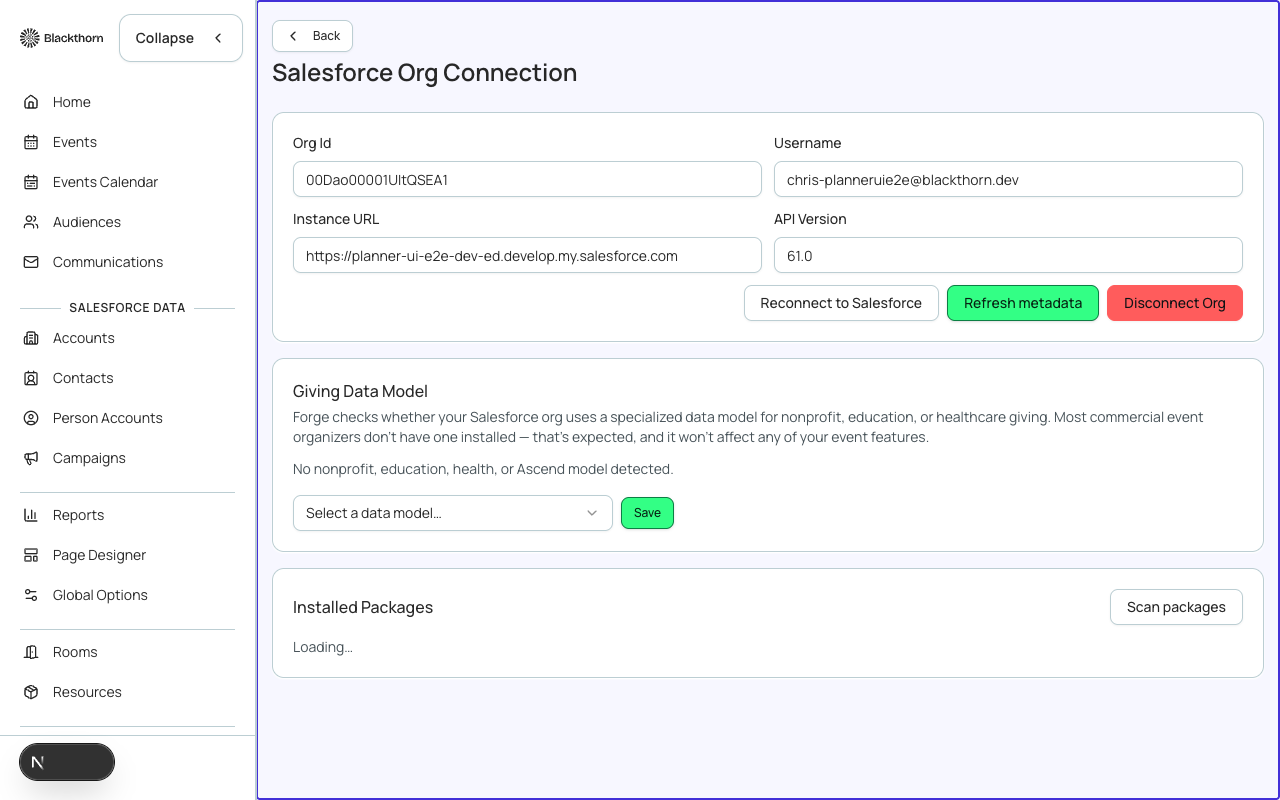
Connection actions are on Admin > Org (the Salesforce Org Connection guide page covers each button). Cache and layout refreshes are on Admin > Salesforce Caching.
- Open Admin > Org and check the Org Id, Username and Instance URL. Confirm you are connected to the org you intended, Production or Sandbox.
- If Forge lost access or a token expired, choose Reconnect to Salesforce and sign in. For an admin this is a full disconnect and reconnect.
- After adding fields, picklist values or objects in Salesforce, choose Refresh metadata.
- After changing page layouts, open Admin > Salesforce Caching and choose Refresh layouts, or Refresh All Caches to refresh everything.
- Check the screen that said "Object not mapped" or showed stale data.
Showing Forge inside Salesforce (CSP Trusted Site)
If Forge is shown inside a Lightning page, tab or iframe and the frame reads "This content is blocked", Salesforce is refusing to load a host it does not trust. Forge itself allows Salesforce to frame its pages; the block comes from your org's Content Security Policy, so an admin adds Forge as a CSP Trusted Site.
- In Salesforce, open Setup and search for CSP Trusted Sites (Setup > Security > CSP Trusted Sites).
- Choose New Trusted Site. Name it Forge and enter the URL https://forge.blackthorn.io.
- Under the allowed directives, enable frame-src and connect-src. Enable img-src, font-src and style-src as well if the embedded page loads images, fonts or styles from Forge.
- Set the context to the experience that shows the page (for example Lightning Experience) and make sure the site is Active, then save.
- Repeat for your tenant's vanity domain if you reach Forge through one, for example https://planner.yourcompany.com.
- Reload the Lightning page. If the message remains, check that the URL you entered matches the host in the frame exactly, including the https:// prefix.
Websites outside Salesforce
CSP Trusted Sites only affect pages that Salesforce displays. To embed Forge pages on your own website, use the embed guidance in the Admin and Portals guide instead.
The integration user
Forge's org-level connection runs as one Salesforce user, shown as Username on Admin > Org. Signed-in staff do not use it: their own Salesforce calls run as themselves. The integration user is used for portals, public pages, volunteer check-in and background work such as scheduled sync.
| To achieve... | Do this | Why |
|---|---|---|
| A connection that survives staff changes | Connect with a dedicated integration user, not a named person. | The connection breaks if the connected person is deactivated or their password or IP policy changes. |
| Full Forge functionality | Give the user Blackthorn_Events_Admin and the matching Payments permission set. | Without them, objects and fields are missing from sync and screens. |
| Cache refresh buttons that work | Give the user View All Data or Modify All Data, or connect as a user who has it. | Some refresh actions on Admin > Salesforce Caching need those permissions and fail with a permission error otherwise. |
| Registration Sync that can deploy | Connect once as a user with Customize Application or Modify Metadata. | Enable Salesforce Sync deploys a configuration into your org. |
| Real-time updates from Salesforce | Make sure the connected user has Read access to the registration and lifecycle platform events. | Without it the Org page reports Not receiving. |
| No connection errors from network rules | If the connected app restricts login by IP, ask Blackthorn support which addresses to allow. | A blocked request shows as Salesforce rejected the new connection on Admin > Org. |
| Watch your API allowance | Check Admin > Salesforce API usage regularly. | Forge shares your org's daily API limit with every other integration. |
| Revoke access | In Salesforce Setup, review the connected app's OAuth usage and revoke the Forge connection, then reconnect from Admin > Org. | Tokens are issued by Salesforce, so Salesforce is where you cancel them. |
Salesforce event connection on the Org page
Admin > Org shows a one-line status for the Salesforce platform-event connection that delivers registrations and lifecycle changes to Forge in near real time. It reads one of three states.
- Listening: Forge is subscribed and receiving events. It also shows the time of the last event once there is one.
- Not receiving: the subscription exists but events are not arriving. The message names the cause: the connected user lacks Read access to the platform events (grant it through a permission set), Salesforce needs reconnecting, the org's daily platform-event allowance is used up, or the Forge worker has not checked in for over 15 minutes. A transient connection error is retried automatically.
- Off: listening is switched off until the terms are accepted, or it is not enabled for the org.
Troubleshooting quick reference
| Symptom | Likely cause | Fix |
|---|---|---|
| A screen shows "Object not mapped" | The package was installed after Forge connected, or its object list was not read. | Admin > Org: Scan packages, Refresh metadata, or Reconnect to Salesforce. |
| Fields are blank where data should appear | Field-level security: the field is not readable for that user, or not on the layout. | Grant Read in the user's permission set, or add the field to the layout, then wait a minute. |
| A save fails with a Salesforce error | A validation rule, required field or trigger rejected it. | Read the message; check the rule in Salesforce Setup. |
| A save succeeds but the value changes | A package trigger recalculated it. | See the recalculated-fields table on the Field Mapping page. |
| Data looks stale after a Salesforce edit | Forge read cache or the short-lived cache. | Use the screen's refresh control, or Refresh All Caches on Admin > Salesforce Caching. |
| Sign-in loops back to login | The refresh token was revoked or expired. | Reconnect to Salesforce on Admin > Org and check the connected app's policy in Setup. |
| Forge shows a field the person should not see | Field access is set on the profile but not the connected user's permission sets. | Check field-level security on the permission sets that person actually holds. |
| An event delete is refused | A child record set to block deletion exists (for example a Portal Contact Role). | Remove the child record, or set the event to Canceled instead. |
| Export includes unexpected data | The audience segment's filter is wider than intended. | Review the segment's filter in Audiences and rebuild it. |
Salesforce deep links from Forge
Every Salesforce-backed surface in Forge shows a record icon that opens the underlying record in your org. Use it to check field values, field history or a Debug Log without leaving your workflow.