Event Tour
Finance
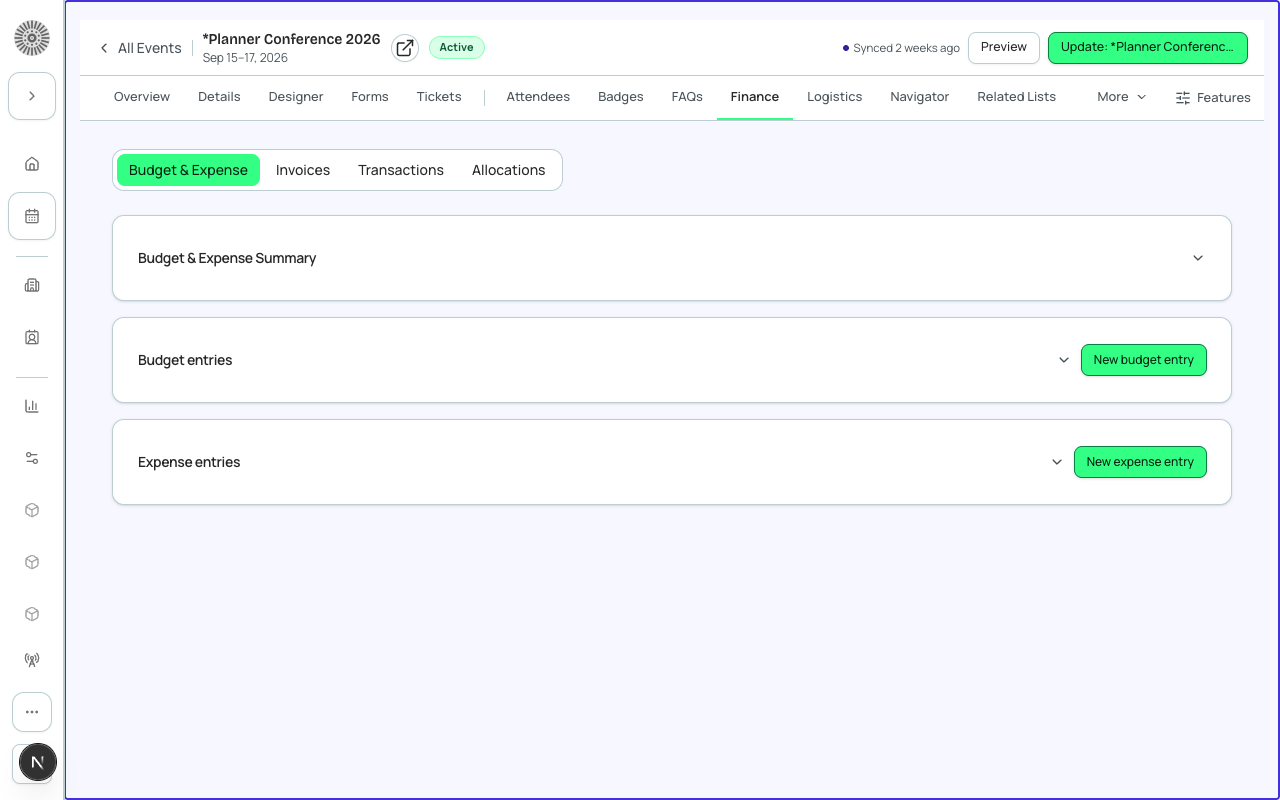
The Finance tab is the event's money workspace. It has four sub-tabs: Budget & Expense (what you plan to spend and what you actually spent), Invoices (what registrants owe and have paid), Transactions (every payment, capture, refund and manual entry) and Allocations (how a payment is split across invoices and line items). A sub-tab only appears when its feature is enabled for the event. Opening Finance takes you to the first one that is available.
Discount codes and fees are configured under the Tickets tab (Tickets > Discount Codes and Tickets > Fees), not here. Revenue totals, Captured, Refunds and A/R for the event are on Reports > Finance. Both are described at the end of this page.
Budget & Expense
Plan and track spend. The page has a summary card, a Budget entries list and an Expense entries list.
| Field | What it does | Recommendation |
|---|---|---|
| Budget & Expense Summary | Total Budget, Total Expenses and Variance (Total Budget minus Total Expenses), plus editable per-category budget and expense totals. Salesforce calculates the totals from the entries below, and a category total you type is overwritten the next time a related entry changes. | Fill the totals by adding entries, not by typing over the summary, so each number can be traced. Use Variance to see how well you estimated. |
| Budget entries | One record per planned cost, with Name, Category, Subcategory, Budget (Estimated Amount) and Actual. New budget entry creates one. Category choices include Audiovisual (AV), Catering (F&B), Decor, Entertainment, Marketing, Marketing (Social), Production & Staff, Site Rental, Other and Contingency. Priority (Critical, Important, Nice to have) can rank categories. 'Other' and custom categories roll up into the event's Other totals. | Create one entry per line you will negotiate, such as the venue and the caterer. Set Priority so you know what to cut first if the budget tightens. |
| Expense entries | Each real payment: Name, Amount, Transaction Date, Vendor (an Account), and Category and Subcategory. New expense entry creates one. Category, Subcategory and Event fill in automatically when the entry is linked to a budget entry. | Log expenses as invoices arrive and link each one to its budget entry so Actual and Variance stay correct. |
| Save all / Discard all | One save bar covers every edit on the page. Nothing is written until you choose Save all. | Review the whole page, then save once. |
Actual spend also feeds the ROI Dashboard's budget variance by category, and the Reports > Finance monthly chart compares revenue with budget.
Invoices
The Invoices list shows each invoice (order) for the event. The chips at the top show counts by status and filter the list when clicked: Paid, Open, Partially Paid, Overdue, Cancelled and Refunded. Filters also include Status and a search box for buyer name or invoice number, with Clear filters. Sort by Invoice #, Buyer, Status, Total, Balance or Created. Export CSV downloads the list; Load more fetches further pages; the footer shows the record count and when the list was last synced.
| Field | What it does | Recommendation |
|---|---|---|
| Invoice detail header | Total, Balance, Status, Created date and the DocumentLink. Buttons: View public invoice (the page the payer sees), Export lines (CSV of the line items) and Download PDF. | Use View public invoice to see exactly what the payer sees before you send a reminder. |
| Line items | Description, Qty, Unit, Amount, Not Discountable and Links to the attendee, event item or ticket. Add line item and Edit line item let you link an Event item, Session, Product and Attendee; rows can be reordered; Delete asks you to confirm and removes the line from Salesforce permanently. | Add a line for a manual charge such as a late fee. Mark a line Not Discountable if codes should not reduce it. |
| Transactions on the invoice | Each payment against the invoice with Status, Method, Transaction, Date and Gateway. View all transactions opens the full list. | Check here first when a payer says they paid but the invoice still shows a balance. |
If the order object has not been mapped, the list says 'Payments are not configured. Map the order object in Admin > Object Mapping.'
Transactions
Every payment record for the event: Transaction ID, Amount, Status, Method and Created. Open a row for its details.
| Row action | What it does | Recommendation |
|---|---|---|
| Capture | Appears only when the payment is Authorized (funds held but not collected). The Capture Payment dialog shows the Authorized Amount and a Capture Amount. You may capture less than the authorized amount (a partial capture). | Capture before the hold expires. Authorized funds become Uncaptured after 7 days if they are not captured. |
| Refund | Opens Refund Transaction. Choose Full refund or Partial refund, enter a Refund amount (it cannot exceed the Original amount) and a Reason: Requested by customer, Duplicate charge or Fraudulent. The refund is sent to the payment gateway. Disabled once a transaction is already Refunded. | Use Full refund for a cancelled registration and Partial refund for a price correction. Pick the reason that matches why you are refunding. |
| Issue Refund via Allocation | Opens Issue Refund, which creates a Refund allocation record linked to the transaction for the Amount you enter. | Use it when you need the allocation recorded against specific invoices. To send money back through the gateway, use Refund. |
| Delete | Enabled only for failed or voided transactions; the tooltip says 'Only failed or voided transactions can be deleted'. Confirmation is required and it cannot be undone. | Delete only clear mistakes. Keep real payments so your records match the gateway. |
A refund is submitted to the payment gateway immediately. How long it takes the cardholder to see the money depends on their bank.
New transaction (manual entry)
| Field | What it does | Recommendation |
|---|---|---|
| Amount | Must be a number greater than 0. | Enter positive numbers only; use the Transaction type to say what it is. |
| Currency | The transaction's currency. | Match the event's currency. |
| Status | Open, Completed or Canceled. Choosing Completed also marks the payment as Captured. | Use Completed for money you have already received, and Open for a payment you expect. |
| Transaction type | Normal (a regular charge), Refund, Reversal or Write Off. | Use Write Off to clear a balance you will never collect. |
| Non-Stripe / manual entry | Tick it for cash, check, wire or other payments taken outside the payment gateway. Without it the transaction is treated as a gateway payment. | Tick it for every offline payment so it is not expected to match a gateway record. |
| Description | Free text note saved on the transaction. | Add the check number, wire reference or who handled the cash. |
If your org's payment setup has no direct link between transactions and events, the New transaction page shows a notice instead of the form and the entry is blocked, rather than creating an unlinked record.
Status meanings
| Transaction Status | Meaning |
|---|---|
| Open | Created but not yet processed. Open and Canceled are the only statuses meant to be set by hand. |
| Process / Pending / Pending Payment Intent | In-progress states while the payment is being processed (for example a bank transfer in progress). |
| Completed | The transaction finished processing. |
| On Hold | Held for manual review or action. |
| Needs Review | Needs a person to look at it before it can continue. |
| Failed | The gateway rejected the attempt. |
| Canceled | Canceled before completion. |
| Payment Status | Meaning |
|---|---|
| Authorized | Funds are held on the payment method but not yet collected. |
| Uncaptured | An authorization that was not captured within 7 days. |
| Captured / Partially Captured | All or part of the funds were collected. |
| Refunded / Partially Refunded | The full or part of the payment was returned. |
| Disputed / Dispute Warning | The cardholder challenged the charge, or a dispute may be coming. |
| Other values | In Transit, Paid, Transferred, Partially Reversed and Reversed also exist for payouts and reversals. |
Payment Status only applies when Transaction Status is Completed.
Allocations
An allocation splits one payment across several invoices or invoice line items. For example, one transaction that pays four invoices gets four allocations. The list shows Name, Transaction, Line Item, Invoice, Type and Amount, and can be filtered by Transaction or by Invoice. Allocations list only this event's payments.
| Field | What it does | Recommendation |
|---|---|---|
| New Allocation - Transaction | The payment being split (required). | Pick the transaction first. |
| Line item / Invoice | Optionally the specific line item and the invoice the money applies to. | Choose the invoice, and a line item only when the payment is for a specific line. |
| Type | Payment, Refund or Write Off. | Payment for normal splits, Refund to record money returned, Write Off for an uncollectable balance. |
| Amount | The amount to allocate to the related invoice or line item. | Make the allocations add up to the transaction amount. |
| Delete | Permanently removes the allocation record from Salesforce after confirmation. | Delete only mistakes. |
If the Allocation object is not installed in the org, the page shows an error state instead of the list.
Discount codes (Tickets > Discount Codes)
Discount codes offer reduced prices to chosen attendees. Create event-specific codes under Tickets > Discount Codes; codes are scoped per event, so to use one across an event group, create it on each event. Each code is a card you expand to edit. It shows Active, Inactive or Unsaved; a new code stays Unsaved until you save it, and saving writes it to Salesforce.
| Field | What it does | Recommendation |
|---|---|---|
| Code | The text registrants enter at checkout (for example EARLY10). Required. | Use short, memorable, uppercase codes. |
| Scope / Ticket | Event applies the discount to all tickets in this event. Ticket limits it to one ticket type. | Use Ticket scope for a ticket-specific promotion, such as a student rate. |
| Type and Value | Percent (%) or Amount ($). A value is required and must be positive; percent cannot exceed 100. | Use Percent for early-bird, Amount for a fixed voucher. |
| Priority (lower = earlier) | The order discounts are applied when several qualify. They stack in priority order, each applied to the running total, not the original price. | Give your most important code the lowest number. |
| Exclusive | When on, the code cannot be combined with other codes on the same order. | Turn on for sponsor or comp codes. |
| Group (optional) | A label such as EarlyBird to group related codes. | Use it to keep campaigns together. |
| Usage limits (code / user) | Written like 100 / 1: how many times the code can be used overall, and per person. | Always set a cap on public codes to avoid leaks. |
| Auto-apply | Applies the code automatically when its conditions are met. | Use for member pricing. |
| Valid from / Valid to | The date window in which the code works. | End early-bird codes on a fixed date. |
| Eligibility (button on saved codes) | Opens the code's eligibility page, where Restrict to tickets limits the code to chosen ticket types, with optional per-ticket Valid from and Valid to overrides. | Use when a code should work on some tickets only. |
| Duplicate / Activate or Deactivate / Remove | Copy a code, switch it on or off without deleting it, or delete it. | Deactivate rather than Remove to keep history. |
Priority, Exclusive, Group and Auto-apply only appear when your org's discount object has fields for them. Creating codes needs access to the Payments permission set in Salesforce; without it the page says so.
| Forge | SF Object | SF Field |
|---|---|---|
| Discount code | bt_stripe__Code__c | Name |
| Discount amount (flat) | bt_stripe__Code__c | bt_stripe__Discount_Amount__c |
| Discount amount (percentage) | bt_stripe__Code__c | bt_stripe__Discount_Percentage__c |
| Quantity available | bt_stripe__Code__c | bt_stripe__Quantity_Available__c |
Fees
Processing fees and surcharges are managed under Tickets > Fees. See the Fees guide page for the full list of fee fields.
Every order is a bt_stripe__Sales_Document__c record in Salesforce (shown as an invoice in Forge). Every payment or refund is a bt_stripe__Transaction__c, and allocations are Allocation records. Gateway credentials are stored in bt_stripe__Payment_Gateway__c. Card data is never stored: Forge and Salesforce keep only tokenised references.