Event Tour
Sponsors
The Sponsors tab manages the organizations sponsoring your event: who they are, their tier and status, their logo, the amount, payment details, contract, and the benefits you owe them. Each sponsor is a Sponsor record linked to the event and optionally to a Salesforce Account.
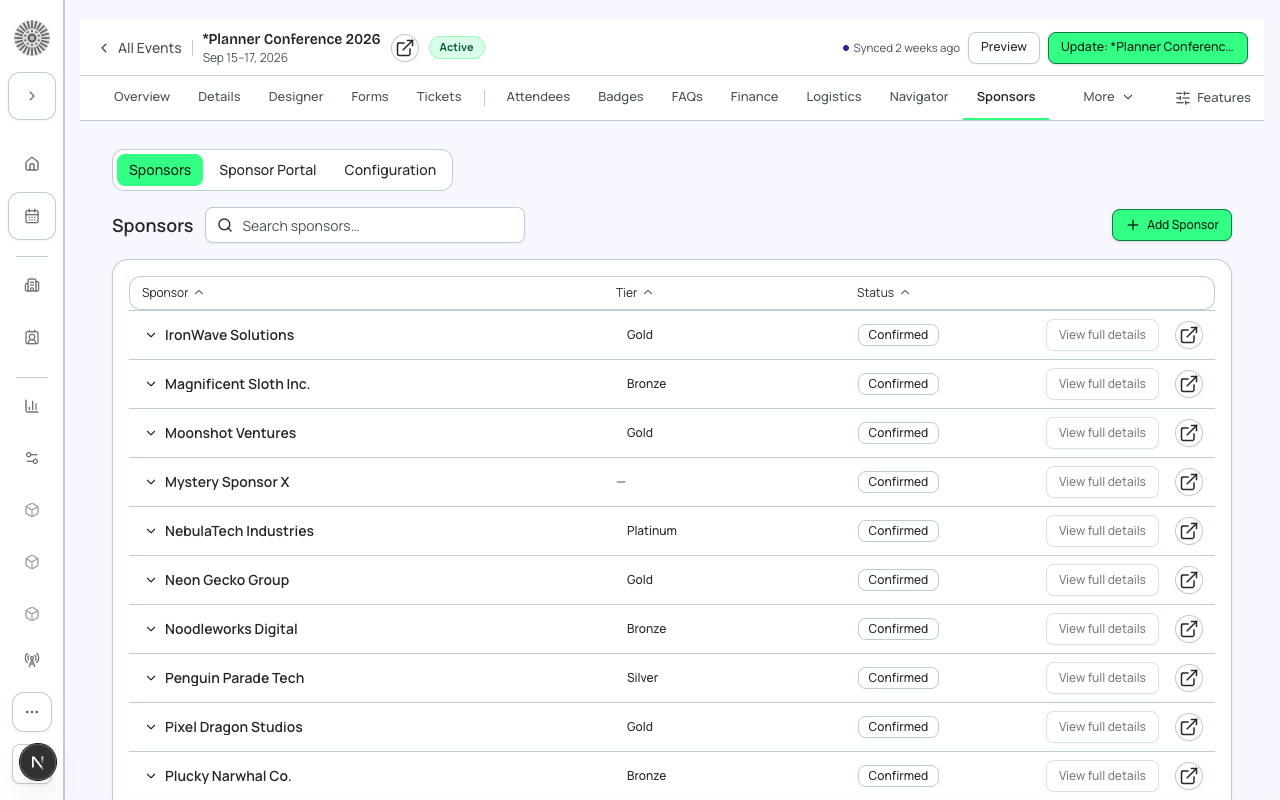
Views
| View | What it shows |
|---|---|
| Sponsors | The list of sponsors with name, tier and status. Search, Add Sponsor, expand a row, View full details, Delete. |
| Configuration | Sponsor rules (see below). |
A Sponsor Portal view also appears when the Unified Portal beta is enabled for your organization; see the Sponsor Portal page.
The sponsor list
| Item | What it shows or does | Recommendation |
|---|---|---|
| Sponsor, Tier, Status columns | Name, tier and status. Click a row to expand it for Tier, Status, Account and Website. | Sort and scan by status to see who still needs chasing. |
| Sponsor details (Configured by admin) | Extra fields come from your organization's Sponsor layout. | Ask your admin to add fields you need. |
| View full details | Opens the sponsor page. | |
| Delete | Permanently deletes the sponsor after you confirm. | Set the status to Declined instead if you may want the history. |
Adding a sponsor
| Field | What it does | Recommendation |
|---|---|---|
| Company Name | Required, up to 255 characters. The sponsor name. | Use the name as it should be displayed to attendees. |
| Tier | Bronze, Silver, Gold, Platinum or Custom. Leave blank (shown as a dash) if not decided. | Set the tier the sponsor is buying, so the public page groups them correctly. |
| Status | Planned (being considered), Invited, Confirmed or Declined. | Move to Confirmed only when the sponsorship is agreed; use Declined to keep a record of no. |
| Website | The sponsor's link. A bare domain gets https:// added automatically, and the link must be https. | Link to the sponsor's landing page for your event, not just the homepage. |
| Logo | PNG or SVG, up to 2 MB. Add a Logo alt text after uploading. Change logo and Remove logo are available. | Use a PNG or SVG with a transparent background. Recommended size is 320 x 128 px. |
Sponsor page
Open a sponsor with View full details. It is a single page of sections.
| Section | What it does | Recommendation |
|---|---|---|
| Summary badges and header | Sponsorship Level, Account, Status, and a delete action. | |
| Amount | The sponsorship amount. Click edit, enter a valid amount and save. | Keep it current so finance reports match. |
| Comp registrations | Shows how many complimentary registrations the sponsor has used out of their quota (for example 3 / 5 used). | Check it before you approve more comp tickets. |
| Landing image (Logo) | Upload logo. Uploads save to Salesforce Files and update the logo field. | Replace the logo here when a sponsor sends a new one. |
| Sponsor contract | Upload contract, download or delete files. They save to Salesforce Files and link to the sponsor record. | Keep the signed contract here so the team can find it. |
| Details from your layout | The Sponsor fields from your organization's layout. | |
| Sponsor Details (Display Name, Website, Description) | Click Edit details to change the display name shown to attendees, the website and a rich-text description. Save to apply. | Use Display Name when the legal name is not how the sponsor is known. |
| Tags | Sponsor tags such as Wifi Sponsor or Breakfast Sponsor, shown to attendees in Navigator. Use the picker to add or remove tags from the shared keyword library, and the Display order arrows to rank them. The card is hidden until your Events package includes sponsor tags. | Give a sponsor a tag per thing they paid for so attendees can find them. |
| Payment details | Method, Promise to pay (Yes or No, with the promised date) and Notes. | Record promised dates so Finance can follow up. |
| Benefits | Track what you owe the sponsor. Add benefit: Type (Table, Email List, Sponsored Talk, Ad, Email Blast, Credit or Other), Quantity, Due date and Owner team (Sponsorship, Marketing, Operations or Finance). Each benefit has a status: Not Started, In Progress, Submitted, Fulfilled, Blocked or Waived. | Add one benefit per deliverable with a due date and an owning team, then work the list until every row is Fulfilled or Waived. Salesforce notes the status is shown to the sponsor in their portal. |
| Assets and Messages | Files a sponsor submitted and the organizer inbox of messages from the Sponsor Portal. They stay empty until sponsors use the portal (Beta). | |
| Related lists | Other records related to the sponsor, hidden when empty. |
Configuration: sponsor rules
| Rule | What it says | Note |
|---|---|---|
| Require sponsor logo | Sponsor must upload a company logo before their profile is considered complete. | Saved with the event's Forge settings. Forge does not currently block a sponsor without a logo, so use it as a checklist. |
| Require payment confirmation | Sponsor must confirm a payment method before they can be activated. | Same as above. |
| Max booth staff per sponsor | The maximum number of guests or booth staff a single sponsor can register for this event. Whole numbers only. | Same as above. Enter a number such as 5. |
The header shows how many of the three rules are active.
Showing sponsors publicly
Sponsors appear on your public event page through the Sponsors block in the Page Designer, where you choose how logos display. The block shows up to 20 sponsors and skips only those with Hide On Event Page ticked. It does not look at Status, so a sponsor who is still Planned or Declined will show unless you hide them. Sponsorship Tiers (beta) lets you sell sponsorship packages online.
To keep an unconfirmed sponsor off the public page, tick Hide On Event Page on the sponsor record (the field appears when it is on your Sponsor layout) until the sponsorship is Confirmed, then untick it.
| Forge | SF Object | SF Field |
|---|---|---|
| Sponsor name (Display Name) | conference360__Sponsor__c | Name / conference360__Display_Name__c |
| Tier | conference360__Sponsor__c | conference360__Tier__c |
| Status | conference360__Sponsor__c | conference360__Status__c |
| Linked account | conference360__Sponsor__c | conference360__Account__c |
| Website | conference360__Sponsor__c | conference360__Website__c |
| Description | conference360__Sponsor__c | conference360__Bio_Rich__c |
| Hide On Event Page | conference360__Sponsor__c | conference360__Hide_On_Event_Page__c |
| Benefit type / status / quantity / due date / owner team | conference360__Sponsor_Benefit__c | Benefit_Type__c / Fulfillment_Status__c / Quantity__c / Due_Date__c / Owner_Team__c |