Recipes
In-Person Event
An in-person event needs a physical location. Forge shows the venue on the public page and in the event header, builds a View on map link from the address, and lets you cap attendance and run a waitlist when the room is full.
Before you start
- Have the full venue address ready: venue name, street, city, state or province, postal code and country. If the venue is a Salesforce Account, you can search it instead.
- Know the room headcount. It tells you what to put in Quantity Available on tickets, and in Total Capacity if you want a hard cap.
- If sessions use different rooms, have the room names and each room's capacity.
Settings at a glance
| To achieve | Set this | To this value |
|---|---|---|
| The venue shown with a working map link | Event Type, then Venue Account or Venue Name, Street Address, City, State/Province, Postal Code, Country (Basics step, or Event Info > Location) | In-Person. Choose the address suggestion instead of typing so City, State, Postal Code and Country fill in. Picking a Venue Account copies its billing address. |
| A cap on tickets for each tier | Quantity Available (Tickets step, or Tickets > ticket) | The seats you can sell for that tier. Blank means unlimited. |
| A hard cap for the whole event, smaller than the sum of tickets | Total Capacity (Basics step, or Event Info > Capacity and Waitlist) | The room headcount. Enter it after you finish ticket edits and check it again after any ticket change. |
| People can still register when the event is full | Waitlist (Event Info > Capacity and Waitlist) and Max Waitlist Size | Enabled; a size such as 50, or blank for unlimited. |
| The next waitlisted person is moved up automatically when someone cancels | Automated waitlist emails, also called Waitlisting: Automate (Settings tab > Most used, or Registration > Cancellation and waitlist) | On (Yes). Then choose the two waitlist email templates in Most used. |
| The calendar invite shows where to go | Calendar Location (Location tab > Calendar) | The full address. |
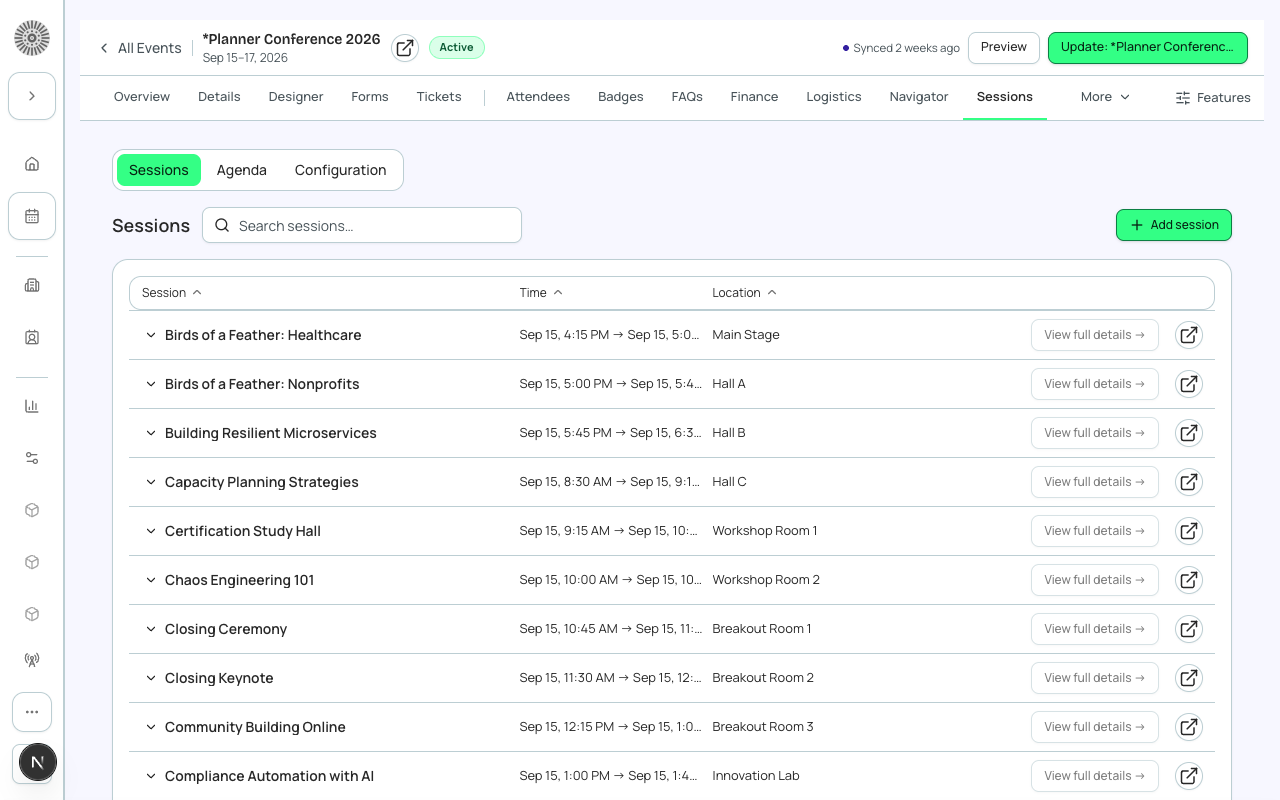
| Sessions show their room | Location / Room (on each session) | Text such as Room 261, or pick a room from the room library if Resource Management is on. |
| A session stops taking registrations when its room is full | Capacity (on each session) | The room's headcount. Turn Waitlist on for popular sessions. |
Steps
- Choose Events > New Event > Create from scratch.
- On the Basics step, enter Event Name, Start Date, Start Time, End Date, End Time and Timezone. Use the venue's timezone.
- Set Event Type to In-Person. Search Venue Account, or type Venue Name, Street Address, City, State or province, Postal Code and Country. Use View on map to check the address.
- Set Total Capacity only if the room has a hard limit. Turn on Enable event waitlist and set Max Waitlist Size if you expect to sell out. Shoppers who join the waitlist at checkout see a confirmation that explains they will be emailed if a seat opens.
- On the Tickets step add your ticket types. Set Quantity Available on each so the tiers add up to the room.
- Turn on Sessions & speakers on the Add optional features step if you will run a schedule, then add each session with Session Name, Start Date, Start Time, Duration, Location / address, Capacity and Waitlist.
- Save the event (Save & Close to stay in Draft, or Save & Publish).
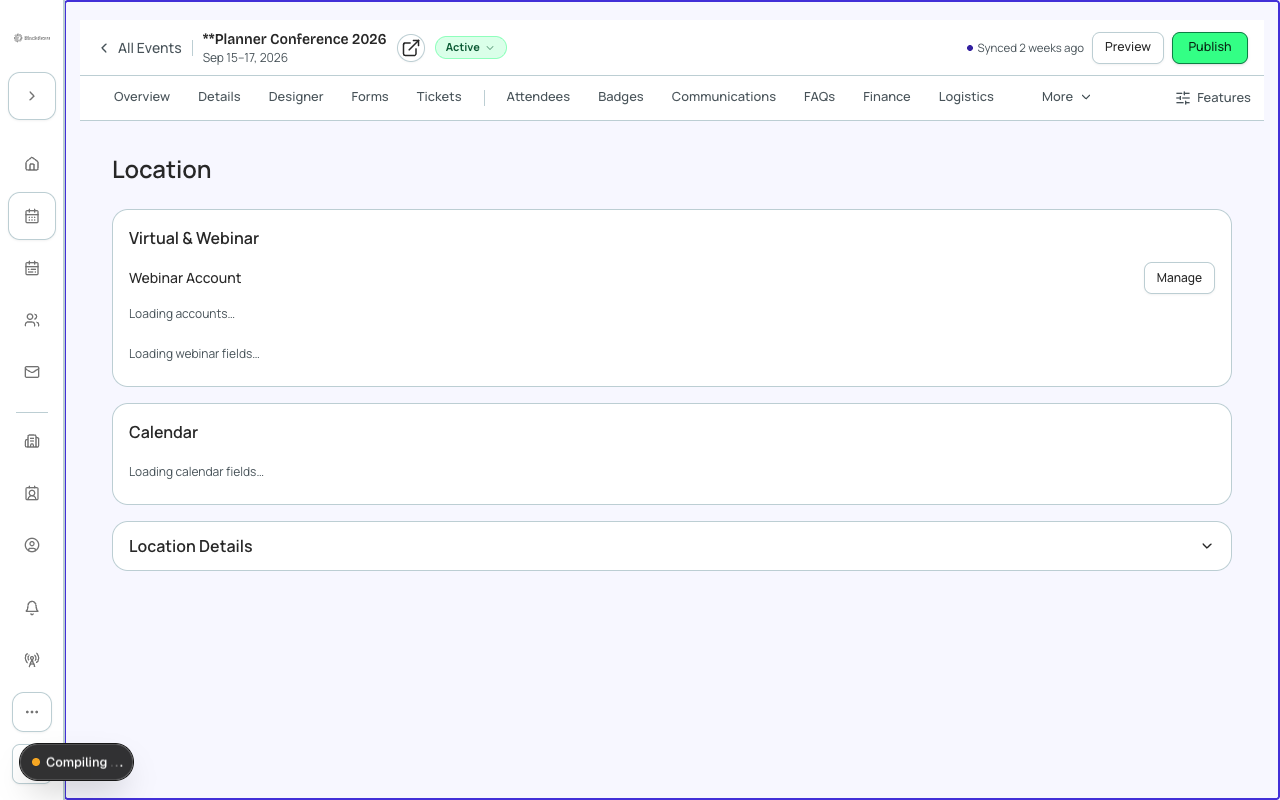
- Open the Location tab. Under Calendar set Calendar Location to the full address and Calendar Description to arrival, parking and contact details.
- To refill cancelled seats automatically, open the Settings tab and set Automated waitlist emails (Waitlisting: Automate) to On, then pick the Email when status is Waitlist-Pending and Email when status is Pending templates. This is a shared Event Settings record, so a change affects every event that uses it. Pick a different Event Settings record on Event Info first if this event needs its own.
- On Overview, check that Needs Attention shows no Missing venue information row, set Status to Active, and choose Publish.
Where capacity is checked
Capacity is enforced in Salesforce. When registrations at or over the limit arrive, a Salesforce trigger stores new attendees as Waitlisted - Pending (counting Registered and Pending attendees against Total Capacity, or against the ticket's Quantity Available). Total Capacity is also re-summed from ticket quantities whenever a ticket is created or edited.
Total Capacity is recalculated
Total Capacity can change after you save a ticket. If you set a hard cap, check the value on Event Info after every ticket edit. Overview shows a Total Capacity may have changed alert when the saved value no longer matches. After you add, duplicate or delete a ticket, or change its quantity, the Tickets tab also shows the old and new Total Capacity with a link to Event Info > Capacity.
What this creates in Salesforce
| Forge | SF Object | SF Field |
|---|---|---|
| Event Type = In-Person | conference360__Event__c | conference360__Event_Location__c = Venue |
| Venue | conference360__Event__c | conference360__Venue__c (Account lookup) / conference360__Venue_Name__c |
| Venue address | conference360__Event__c | conference360__Venue_Street__c / conference360__Venue_City__c / conference360__Venue_State_Province__c / conference360__Venue_Postal_Code__c / conference360__Venue_Country__c |
| Total Capacity | conference360__Event__c | conference360__Attendee_Limit__c |
| Event waitlist | conference360__Event__c | conference360__Waitlist_Enabled__c / conference360__Waitlist_Capacity__c |
| Calendar text | conference360__Event__c | conference360__Calendar_Location__c / conference360__Calendar_Description__c |
| Ticket quantity | conference360__Event_Item__c | conference360__Quantity_Made_Available__c |
| Session room | conference360__Session__c | conference360__Room_Text__c (Location) / conference360__Room_Lookup__c (Room) |
| Session capacity | conference360__Session__c | conference360__Maximum_Registrants__c (Quantity Available) |
| Session start / end | conference360__Session__c | conference360__Start_Date__c / conference360__Start_Time__c / conference360__End_Date__c / conference360__End_Time__c |
Verify
- The public page shows the venue address and a map link.
- Overview shows no Missing venue information reminder.
- With the waitlist on, a registration after the limit is stored as Waitlisted - Pending instead of an error.
- Each session shows its room and capacity in the Sessions tab.
- In Salesforce, conference360__Event_Location__c reads Venue and the venue address fields are filled in.