Recipes
Themes, Branding, and the Public Page
Every event has a public page that attendees see when they follow your event link. The Designer tab controls its look: a UI Theme decides the kind of page, and with the Page Designer theme you build the page from blocks and set colors, fonts and styling for the whole page. This recipe sets branding in the right places and shows where each kind of branding lives.
Before you start
- Have your logo (PNG or SVG with a transparent background) and your brand colors as hex values, for example #7360FF.
- Have a banner image: PNG, JPEG or WebP up to 5 MB.
- Publish the event first. Page Designer opens only once the event has a published preview URL; until then the Designer tab says Publish the event to open Page Designer. Publishing needs a start date, Active status and at least one ticket.
- Your Forge user must be linked to a Salesforce user and your profile needs access to the Website section. Otherwise the tab says Page Designer isn't available for your account.
- The Blackthorn Events app must be authorized for your organization. If it isn't, the tab says Events app isn't authorized for this organization; a Salesforce administrator opens Blackthorn Events Admin, chooses Authorize, and you retry.
Settings at a glance
| To achieve | Set this | To this value |
|---|---|---|
| Use the drag-and-drop builder | UI Theme (top right of the Designer tab) | Page Designer. Other values (Dynamic, Tabbed, Simple, BYO-CSS, Full-Width) are fixed layouts; Full-Width is deprecated. |
| Brand colors everywhere | Site settings > Color scheme (Website tab) | Your brand colors. Set them first, then style a single block only when it must differ. |
| Brand fonts and consistent sizes | Site settings > Typography | Your font families; change a size token such as H2 once instead of resizing blocks one by one. |
| A header image that works | Main Event Image and Alt Text (Event Info) | PNG, JPEG or WebP up to 5 MB. Alt text is required. Use 820 x 410 pixels (minimum 650 x 320), or 2500 x 731 (minimum 1100 x 321) for the Dynamic theme. |
| Reuse the design on the next event | Save as template, then My Templates | Name it for the series. |
| Accessible text | Accessibility check (Website tab) | Run it before launch. It checks image alt text, button labels and text contrast of at least 4.5:1. |
| A good phone experience | Mobile preview (Website tab) | Check below 768 pixels wide. Columns stack to one column. |
| Events on an older theme | Primary Color (#), Font, Favicon URL and Custom CSS URL (Settings tab > Public Event Page) | Hex without the # sign, for example 7360FF; a supported font; a 16 x 16 pixel favicon; a stylesheet URL. These do not affect Page Designer events. |
Steps
- Open the event and choose the Designer tab. At the top right set UI Theme to Page Designer. It saves immediately.
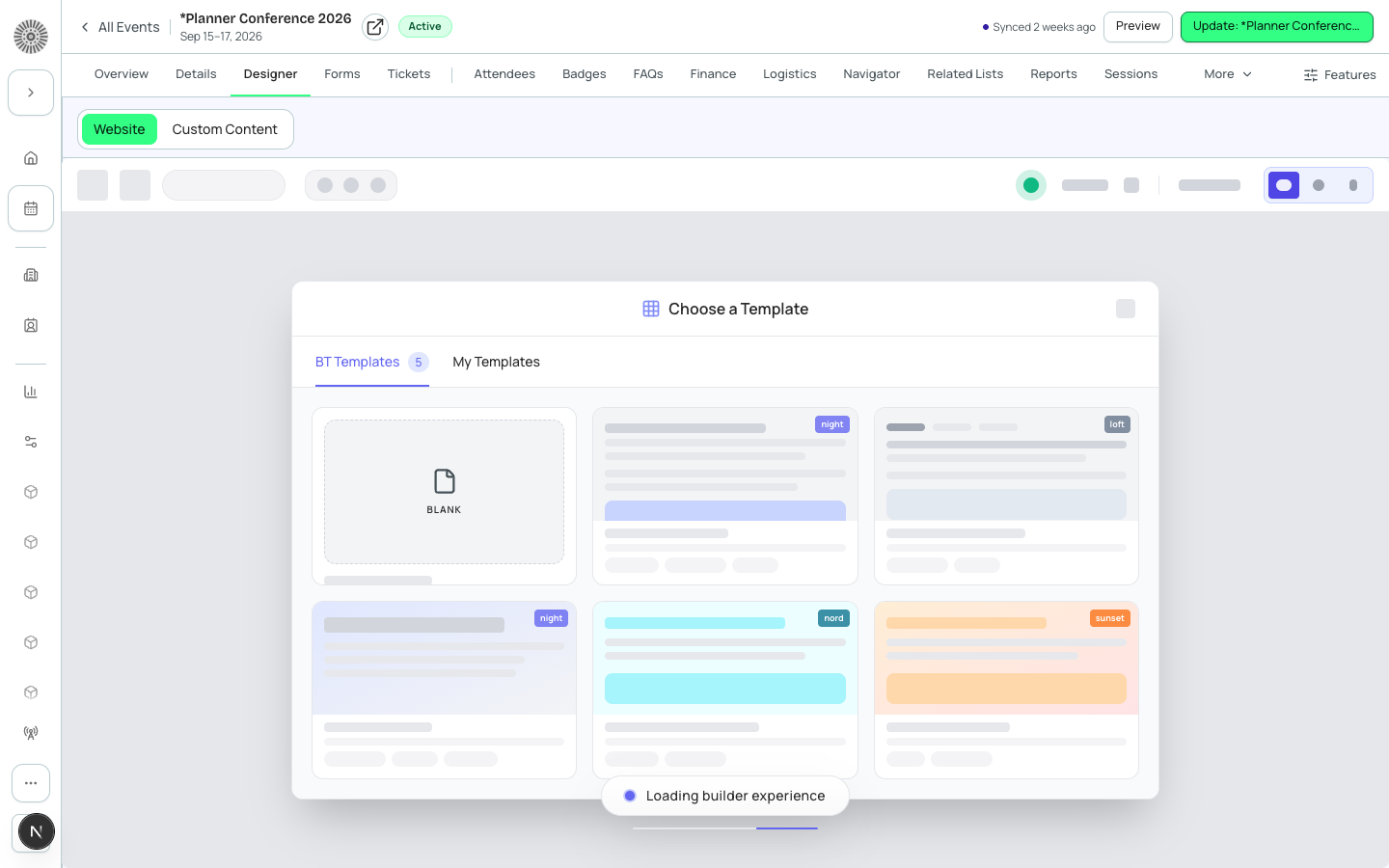
- Open the Website tab. Choose Templates and pick the closest match (for example Bold Conference, Tabbed Conference, Charity Gala or Simple Checkout - Modern Design), or open My Templates for one your team saved. Applying a template replaces the current layout.
- Open Site settings. In Color scheme enter your brand colors. In Typography choose your fonts and set the heading and body size tokens. Use Styling for borders and similar settings, and Custom CSS only for small fixes.
- Edit the Hero block: heading, text and up to two buttons. Add a Register Button near the top and another near the bottom.
- Keep a Ticket Pricing (or Simple Pricing Card) block on the page unless you link out with a Register Button. Turn on the Event Banner block to show the event's Main Event Image, and upload that image on Event Info first.
- Show or hide data blocks (About Event, Sessions Schedule, Speakers, Sponsors, Simple Location Card, FAQ) to match what the event really has. Data blocks stay empty when the event has nothing to show.
- Give every image alt text and every button a label. Run the Accessibility check and use its one-click fixes.
- Preview in Desktop, Tablet and Mobile. Move the Register Button and ticket block up if they sit far down on a phone.
- Choose Save. There is no separate Publish step in the builder: saving updates the page design the event uses, and the public page picks it up within about ten minutes. Autosave starts after your first manual Save.
Where branding lives
| Surface | Where you set it | Notes |
|---|---|---|
| Event page (Page Designer) | Designer > Website > Site settings | Per design. A design shared by several events asks whether to save for all, copy for this event, or start from a template. |
| Event page (older themes) | Settings tab > Public Event Page: Primary Color (#), Font, Favicon URL, Custom CSS URL | A shared Event Settings record; changes affect every event that uses it. |
| Event group listing | Event Group record: Logo URL, Alternative Text, Primary Color (#), UI Experience | Applies to the group's public listing. |
| Emails | Admin > Email > Brand Settings | Logo, colors and font as a brand kit for template previews and new templates. |
| Portals | Admin > Portal > Brand & logo | Scope by portal and by event. Each value shows its source: Portal override, Page Designer, Event Settings or Forge default. |
Shared designs
Because saving changes the live design, edit shared designs carefully. If only one event should change, make a copy for that event. Two people editing the same design at once overwrite each other: the last save wins.
Content comes from Salesforce
Data shown in each block (speaker names, session titles, sponsor logos, tickets) is read from Salesforce records each time the page loads. Fix wrong content on its own tab, not in the designer.
Section reference
| Block | What it shows | Condition |
|---|---|---|
| Header and Footer | Top bar with cart and language selector; footer links and logo | Header must be the first section and Footer the last. |
| Hero | Heading, text and up to two buttons | Content you type. |
| Event Banner | The event's Main Event Image and a status label | Needs a Main Event Image on Event Info. |
| Event Title, Event Date & Time, About Event | Name, dates and time zone, description | About Event is empty when the event has no description, or when the event's Show Event Information is unchecked (when your organization has that setting turned on). |
| Ticket Pricing, Simple Pricing Card, Register Button | Ticket types and prices; a button into checkout | Keep one on the page. |
| Sessions Schedule | Sessions by day in the event's time zone, with tracks | Sessions without a start date are not shown. |
| Speakers | Photo, name and title | Speakers marked Hide On Event Page or Speaker Visibility Hidden are left out. |
| Sponsors | Sponsor logos or names | Only Confirmed sponsors appear. |
| Simple Location Card | Venue with Open Map, Directions and Website buttons | Fill in the venue on Event Info first. |
| FAQ | The event's FAQs by category | Maintained on the FAQs tab. |
Verify
- The public page shows your banner image and brand colors on buttons and headings.
- The Accessibility check reports no outstanding problems.
- The Mobile preview has no horizontal scrolling and the Register Button is reachable.
- Blocks show the right data: speakers and sponsors appear, sessions show start times.
- Changes you saved show on the public page after a short wait and a hard refresh.