Recipes
Paid Tiered Event
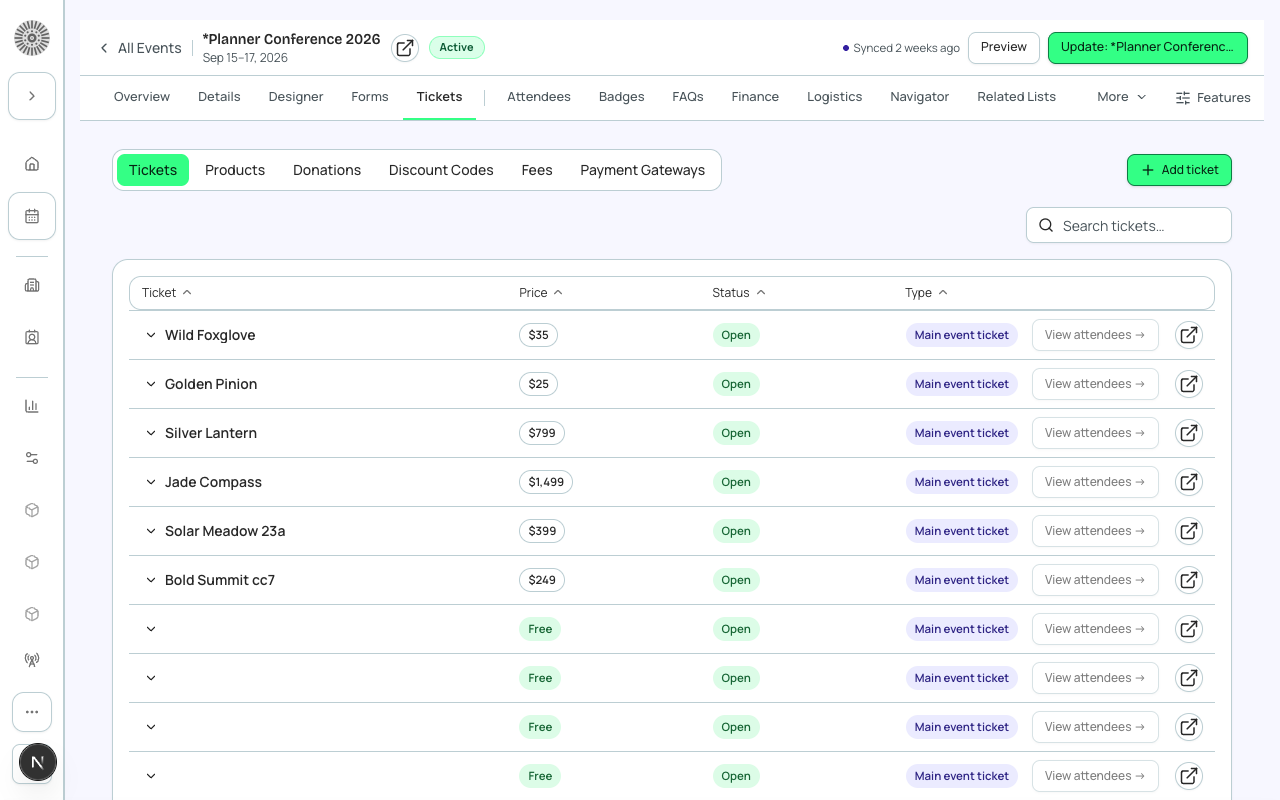
A tiered paid event sells more than one ticket at different prices, for example Early Bird, Standard and VIP, with an optional donation and a processing fee. The Planner Conference 2026 demo event is a good reference: it uses tiers from 25 dollars (digital access) up to 1,499 dollars (platinum) plus a 50 dollar donation item.
Before you start
- Connect a payment gateway (Admin > Payment Gateways). A gateway shown as Not connected cannot be chosen, and payments routed to it fail.
- List your tiers: name, price, how many seats, and any sale window (for example Early Bird ends July 31).
- To create discount codes or fees your Salesforce user needs the Payments permission set. Without it the Add code button is disabled.
Settings at a glance
| To achieve | Set this | To this value |
|---|---|---|
| A paid event | Event pricing (Basics step) | Paid event. |
| Money goes to the right account | Tickets & Products gateway (Tickets > Payment Gateways) | The gateway for the account that should receive ticket money. |
| Donations go to a different account | Donation gateway (same place) | A separate gateway of the same payment processor, or No gateway (uses primary). |
| Early-bird price that ends on a date | Sales End Date and Time on the Early Bird ticket; Sales Start Date and Time on the next ticket | End on the cutoff date; start the next ticket the following day, in the event's timezone. |
| Tiers in the order you want | Sort Order on each ticket | 10, 20, 30, so you can insert a tier later. |
| Tickets that can be bought | Status on each ticket | On Sale. Keep Planned while you configure and use Unavailable to pull a tier. |
| Urgency near sell-out | Capacity Threshold Enabled and Limit on the ticket | Yes and about 10. |
| A card surcharge on orders | Fee type and Percent (Tickets > Fees) | Payment Processing, and a percentage such as 2.9. Fees are percentages only. |
| Sales tax | Fee type and Percent (Tickets > Fees) | Tax, and the local percentage. |
| Invoiced corporate buyers | Enabled Payment Methods and Pay Later Payment Term (Settings tab > Tickets and Pricing) | Add Pay Later next to Card; Net 30, or your own terms. |
| A promotion code | Code, Type and Value, Valid to (Tickets > Discount Codes) | For example EARLY25, Percent, 25, with an end date. |
Steps
- Create the event with Event pricing set to Paid event, or open an existing event and go to Tickets & Items.
- On Tickets > Payment Gateways choose the Tickets & Products gateway. Choose a Donation gateway only if donations go to a different account.
- On the Tickets sub-tab choose Add ticket. Enter Public Item Name (for example Early Bird), leave Type as Main event ticket, enter Price (for example 25), Quantity Available (for example 200), and Sort Order 10. Save.
- For the Early Bird ticket, set Sales End Date and Time to the cutoff. Create Standard (for example price 50, Sort Order 20) with Sales Start Date and Time the next day. Create VIP (for example 249, Sort Order 30) and Platinum (for example 1,499, Sort Order 40).
- Set each ticket's Status to On Sale when you are ready to sell. Use Capacity Threshold Enabled with a Limit of about 10 on tiers that sell out.
- To add a donation, open the Donations sub-tab, choose Add donation, and add 3 to 5 Donation Amounts such as 25, 50 and 100. Optionally add an image with alt text and attach a form with Collect additional info.
- To add a fee, open the Fees sub-tab, choose Add fee, enter Fee name (for example Credit Card Processing), Fee type Payment Processing and Percent 2.9, then choose Assign as Payment Processing Fee. Do the same with type Tax for sales tax.
- To create a code, open the Discount Codes sub-tab, choose Add code, and set Code (EARLY25), Scope (Event for every ticket, Ticket for one tier), Type Percent, Value 25, a usage limit, and Valid from and Valid to dates.
- On the Settings tab, under Tickets and Pricing, choose Enabled Payment Methods. Select only the methods your gateway supports.
- Make a test purchase with a test card or in test mode, then set Status to Active on Overview and choose Publish.
Card data is never stored
Forge does not store card numbers, CVVs or billing card details. The gateway holds them. The Transaction record in Salesforce keeps the amount, Transaction Status, Payment Status and a gateway reference.
Ticket quantities feed Total Capacity
Editing Quantity Available changes the event's Total Capacity in Salesforce. After you save, Forge may show a notice that Salesforce recalculated Total Capacity from your ticket quantities. If you want a fixed event-wide cap, set Total Capacity again on Event Info.
What this creates in Salesforce
| Forge | SF Object | SF Field |
|---|---|---|
| Ticket tier (per item) | conference360__Event_Item__c | conference360__Item_Name__c / conference360__Price__c / conference360__Type__c / conference360__Status__c / conference360__Quantity_Made_Available__c / conference360__Sort_Order__c |
| Sale window | conference360__Event_Item__c | conference360__Sales_Start_Date__c / conference360__Sales_End_Date__c |
| Donation item | conference360__Event_Item__c | conference360__Type__c = Donation |
| Event payment gateway | conference360__Event__c | conference360__Payment_Gateway__c / conference360__Donation_Payment_Gateway__c |
| Processing fee | bt_stripe__Fee__c | Type = Payment Processing, percentage |
| Discount code | bt_stripe__Code__c | Name / bt_stripe__Type__c / bt_stripe__Discount_Percentage__c / bt_stripe__Quantity_Available__c / bt_stripe__Valid_Through__c |
| Order (per registration) | bt_stripe__Sales_Document__c | Status and Payment Status |
| Transaction (per payment) | bt_stripe__Transaction__c | bt_stripe__Amount__c / bt_stripe__Transaction_Status__c |
Verify
- Every tier appears on the public page in Sort Order, with the right price.
- The donation appears as an optional add-on.
- The processing fee shows as a separate line in the checkout summary.
- A discount code reduces the total when applied at checkout.
- After a test purchase, Salesforce has an invoice (Sales Document) with Payment Status Paid and a Transaction with Transaction Status Completed.
- The attendee record points at the ticket tier that was bought.