Recipes
Virtual Event
A virtual event has no venue. You set the Event Type to Virtual, connect a webinar account, and Forge creates the meeting link for you or you paste your own. Registered attendees see the meeting link.
Before you start
- Connect your Zoom, GoToWebinar or Webex account under Admin > Webinar Accounts. Virtual and hybrid events need one; without it Overview shows a No webinar account connected reminder.
- Decide whether you want Forge to create the meeting (needs a start and end date and time) or to paste a link from another tool.
- For a paid virtual event, connect a payment gateway.
Settings at a glance
| To achieve | Set this | To this value |
|---|---|---|
| Forge creates the Zoom meeting and the link | Event Type, Platform, and Create the Zoom webinar for this event (Basics step) | Virtual; your Zoom account; on. It needs a start and end date and time, and Forge fills in the join link when the event is saved. |
| Use a link from another tool | Meeting URL (Basics step) | Paste the full link and leave the Create the Zoom webinar switch off. |
| Interactive session where attendees see each other | Zoom Type (Location tab) | Meeting |
| Large audience, presenter only | Zoom Type (Location tab) | Webinar |
| Stop Zoom sending its own registration emails | Zoom Email Notifications (Location tab) | Do not send Zoom Emails, if you send your own confirmations from Forge. |
| Join link inside the calendar invite | Include Zoom URL in Calendar (Location tab) | On |
| Calendar invite that says it is online | Calendar Location and Calendar Description (Location tab) | Calendar Location: Online. Calendar Description: how to join and a dial-in number if you have one. |
Steps
- Choose Events > New Event > Create from scratch.
- On the Basics step, enter Event Name, Start Date, Start Time, End Date, End Time and Timezone. Use the timezone you advertise.
- Set Event Type to Virtual. The venue fields do not appear.
- Choose your webinar account in Platform. If the list is empty, choose Connect a webinar account and authorize one first.
- Either turn on Create the Zoom webinar for this event, or paste your link into Meeting URL. The Meeting URL helper says it is optional and shown to registered attendees.
- Set Event pricing to Free event or Paid event, then continue to Tickets and add a ticket (Ticket Name, Price, Quantity Available). Price 0 makes it a free webinar.
- On Review choose Save & Close to keep it as a Draft while you finish, or Save & Publish when ready.
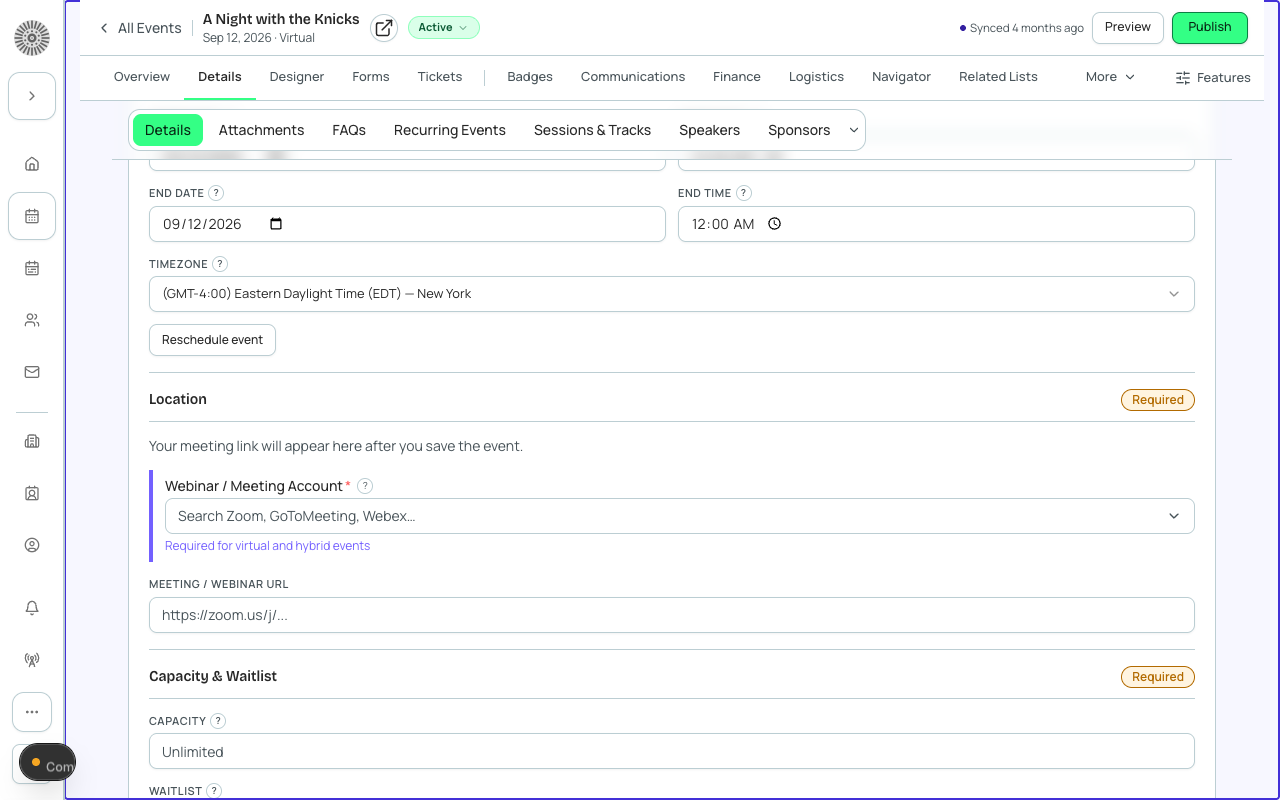
- Open the event's Location tab. Under Virtual & Webinar confirm the Webinar Account and the Webinar / Meeting URL, then set Zoom Type, Zoom Email Notifications and Include Zoom URL in Calendar as in the table above. Each field saves as you leave it.
- Open Communications > Notifications and turn on Registration Confirmation. Choose a template that includes the {{AttendeeLink}} merge field (required for that trigger) and add the event's meeting URL with Insert merge. Preview the template.
- In Page Designer, remove or leave out the Simple Location Card block, since there is no venue to show. Say in the description that the event is online.
- Return to Overview, set Status to Active and choose Publish.
Keeping the link private until registration
If you do not want the link visible before people register, leave the page copy free of the link. The meeting link field itself is shown to registered attendees only, and you add it to your confirmation email template yourself.
Attendee emails are personal data
Attendee email addresses are personal data. Confirmation emails use the attendee's email stored in Salesforce (conference360__Attendee__c, Email field). Forge fetches it when it sends and does not keep it in its database.
What this creates in Salesforce
Salesforce Field Mapping
| Forge | SF Object | SF Field |
|---|---|---|
| Event Type = Virtual | conference360__Event__c | conference360__Event_Location__c = Virtual |
| Webinar account | conference360__Event__c | conference360__Webinar_Account__c |
| Meeting URL | conference360__Event__c | conference360__Webinar_URL__c (also written to conference360__Join_URL__c) |
| Zoom type / Zoom emails | conference360__Event__c | conference360__Zoom_Type__c / conference360__Zoom_Email_Notifications__c |
| Zoom link in calendar | conference360__Event__c | conference360__Include_Zoom_URL_In_Calendar_Description__c |
| Status | conference360__Event__c | conference360__Status__c |
| Published | conference360__Event__c | conference360__Visible__c |
| Ticket price / free | conference360__Event_Item__c | conference360__Price__c / conference360__Free__c |
Verify
- The public page shows no venue address.
- Event Info > Location shows Webinar / Meeting Account and a Meeting URL. If the URL is blank, check the event has start and end dates and times, then save again.
- A test registration creates an attendee with Registration Status Registered.
- The confirmation email you tested includes the meeting link (preview it in Communications).
- In Salesforce, conference360__Event_Location__c reads Virtual and conference360__Webinar_URL__c is filled in.