Beta & Experimental Features
Custom Objects in Sidebar
Early AccessManage on the Beta Features pageAdds a sidebar navigation link for a configured custom Salesforce object, so tenants who rely on custom objects can reach them directly from the left nav instead of only through Salesforce or a related list.
Stage: Early Access. Turn Custom Objects in Sidebar on from the Beta Features page (/beta). It is an admin feature. Entries you configure under Admin, Custom Objects do not appear anywhere until the switch is on; the configuration page shows a notice saying so.
How it works
- Turn on Custom Objects in Sidebar on /beta.
- Open Admin, then Custom Objects, and choose Add.
- Pick the Salesforce object, give it a display name and icon, and say which Forge record it belongs to (its connection).
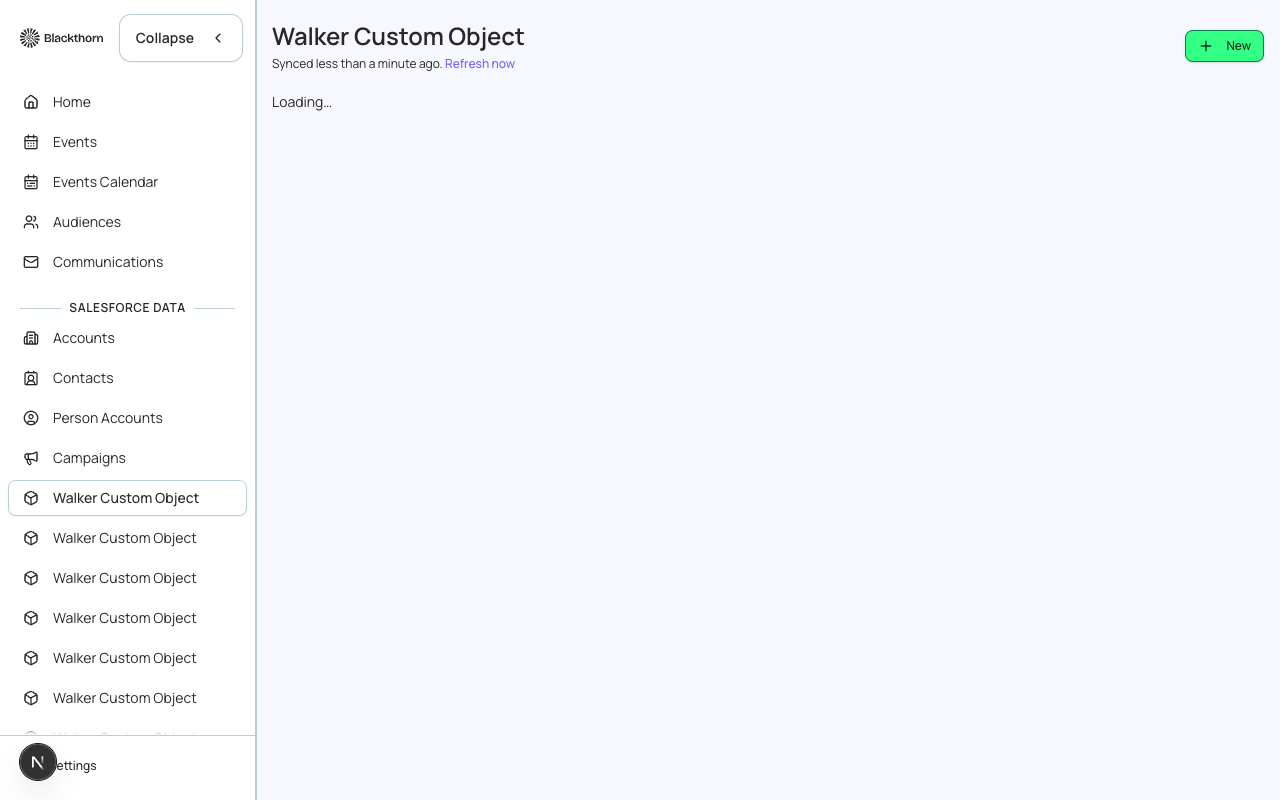
- Save. The object appears as a link in the Salesforce Data section of the sidebar, alongside Accounts, Contacts and Campaigns.
Entry settings: what each field does
| Field | What it does | Recommendation |
|---|---|---|
| Display Name | The label shown in the sidebar and as the page title. Required. | Use a plural noun your team already says, such as Vendors. |
| Salesforce Object | The Salesforce object to show, picked from a searchable list. Required. | Pick a custom object ending in __c. A standard object is allowed but gets a Standard object warning because changes there affect your whole org. |
| Validate Object | Checks that the object exists in your connected Salesforce org and that its fields are accessible. It also reports whether a lookup to Event was found. | Run it before saving. If it fails, fix object permissions for the integration user in Salesforce. |
| Icon | The icon beside the link, chosen from an icon picker. Defaults to a box. | Choose something distinct from the neighbouring links. |
| Enabled | Turns the entry on or off without deleting it. A disabled entry is badged disabled. | Disable an entry to hide it temporarily, for example during a data clean-up. |
| Connected To (Add Connection) | Ties the object to a Forge record so its list is filtered to records that belong to that parent. Choose the Connected Object (Event, Attendee, Account, Contact, Lead, Opportunity or Campaign), the Lookup Field on your custom object that points to it, and a display Label. Auto-detect finds the lookup for you. Each connected object can be added once. | Always add at least one connection. With none, the page warns that it will show all records without filtering by a parent. |
| Lookup Field | The reference field on your custom object that points to the connected object. Only direct, single-value lookup fields are listed. | Pick the lookup that really means the parent. If none match the selected connected object you see None of the available lookup fields point to the selected connected object. |
For example, a Vendor__c object with a lookup to Event can be added so planners can manage vendors directly from each event: it shows a Vendors tab under each event with Vendor__c records where the event matches the current event.
Managing entries
- The list shows each entry's name, slug, icon and Salesforce object.
- Drag the handle, or use Move up and Move down, to change the order of links in the sidebar.
- Edit changes any setting. Delete asks Remove this custom object from navigation? and removes only the link, not the Salesforce object or its records.
- The list shows 20 entries at a time with Show more.
Using the linked page
- Select the link in the sidebar to open the object's list at /custom/{slug}. It shows the object's columns, a record count, a Salesforce icon on each row, and New to create a record.
- Open a record to see its fields and related lists, and to delete it.
- Connected lists accept a parent filter; opened from a parent record they only show records for that parent.
- Record lists load up to 200 records and show 20 at a time with Show more.
Connections support direct lookup fields only. Relationships routed through another object, and multi-select relationships, are not supported yet.
Users on custom profiles only see a custom object link when their profile grants access to it; each object appears in the profile's navigation list. Admin and Planner roles see every enabled link.
The sidebar entries are stored in Forge. The records themselves stay in Salesforce and are created, edited and deleted there through Forge.