Beta & Experimental Features
Translations
Early AccessManage on the Beta Features pageTranslations is where you set up languages for an event and manage translated text. It has two parts: a per-event Translations page (language controls and a clone tool) and an organization-wide page under Global Options with the Salesforce Translation Records list and a Custom Translation Glossary.
Stage
Translations is an Early Access feature. Turn it on from the Beta features page (/beta). While it is off, the Global Options Translations page sends you back to Global Options.
Event Translations page: language controls
Open an event, go to Manage, then Translations. The Language controls box edits five fields on the event's Event Settings record in Salesforce.
| Field | What it does | Recommendation |
|---|---|---|
| Source Language | The event is automatically translated to this language. For example, choose French to load an English event in French. | Leave it empty unless every visitor should see the event in a language other than the one you wrote it in. |
| Target Language | The language the event shows in when the page first loads. | Set it to your main audience's language. Visitors can still change it if the language selector is on. |
| Language Selector | On or Off. When On, the event page shows a language selector. | Turn On when you have added more than one language. Leave Off for a single-language event. |
| Supported Languages | Which languages appear in the selector. English is supported by default. | Pick only languages you have actually translated; picking others shows untranslated text. |
| Thousands Separator | A comma shows 1,450; a period shows 1.450. | Match your audience's convention: period for much of Europe and Latin America, comma for the US, UK and Canada. |
A right-to-left language such as Hebrew or Arabic has a known limitation; the page shows a banner about it. Test the registration page in that language before launch.
Clone Translations
Clone Translations copies every Translation record from this event to other events. Pick Recurring Series or Event Group, tick the child events (or Select all), and confirm. The result lists, for each event, how many records were copied and how many failed.
Global Options: Translations
Open Global Options, then Translations (/global/translations).
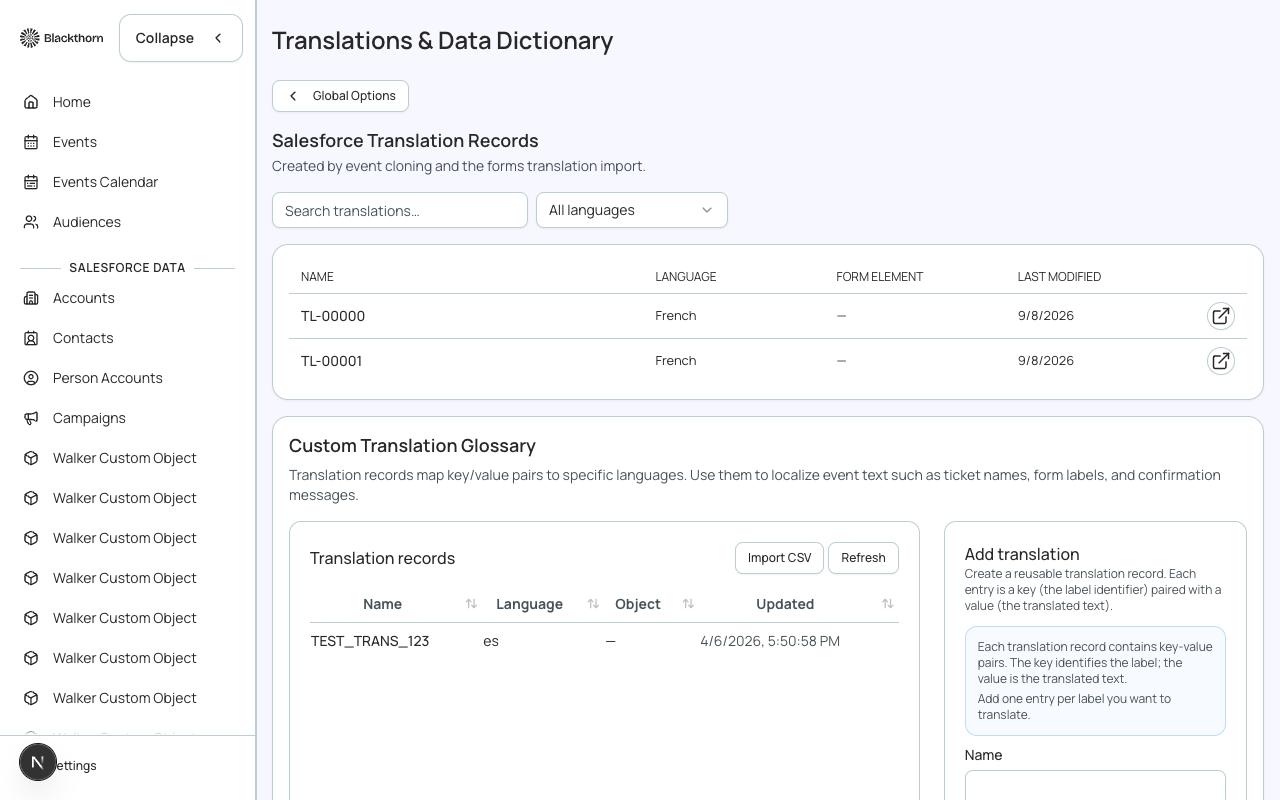
Salesforce Translation Records
A list of the Translation records in Salesforce, created by event cloning and the forms translation import. Search by name or language, or filter by language. It shows 20 at a time with Show more.
| Column or control | What it does | Recommendation |
|---|---|---|
| Name, Language | The record name and its language. | Use the language filter to see what is covered for one language. |
| Form Element | Shows Linked when the record belongs to a form element. | Edit form translations from the form's own translation tools when you can. |
| Last Modified | When the record last changed. | Sort by it to find recent imports. |
| New Translation | Opens a dialog. Choose a Parent object (Event, Session, Speaker, Sponsor, Track, Event Item, FAQ and others), paste the Parent record's Salesforce ID, choose a Locale, then fill the Field value boxes for that object (for example Event Title, Description, Short Description, Success Message). Empty boxes are not saved. | Use for a one-off correction. Fill only the fields you have translated. Fields not mapped in your org are skipped and listed in a warning. |
| Edit and delete | Edit changes the locale and the values of an existing record. Delete removes it after a confirmation. | Delete only records you created by mistake. |
| Migrate to Salesforce | Moves entries from the older Forge-only glossary into Salesforce Translation records, one parent record at a time, with Migrate all. | Use if you have legacy entries marked Legacy, not synced to Salesforce. |
Custom Translation Glossary
A reusable glossary kept in Forge, separate from the Salesforce list above. Each entry maps key and value pairs to a language, to localize text such as ticket names, form labels and confirmation messages. It is not synced to Salesforce.
| Field | What it does | Recommendation |
|---|---|---|
| Name | A name for the glossary entry. | Name it by language and purpose, such as Spanish checkout. |
| Language | The language these pairs are for. | One entry per language keeps things easy to find. |
| Object (optional) | Limits the entry to one kind of record. | Leave empty for a general glossary. |
| Description | Free text for your team. | Say who owns it and when to use it. |
| Key, Value, Notes (optional) | Each row is one pair: the original text or name (key), its translation (value), and an optional note. | Write the key exactly as it appears on the page. |
| Export CSV, Import CSV, Refresh | Download an entry as CSV, upload one, or reload the list. | Export, translate in a spreadsheet, then import. |
Nothing in Forge applies the glossary to a live event page today, so treat it as a place to keep and migrate translations, not a switch that translates pages. Use the language controls and Salesforce Translation records to change what registrants see.
Salesforce note
Language controls are fields on the event's Event Settings record. Translation records are Salesforce records of the Base package (Translation) linked to a parent such as an event or session. Staff-only label overrides are described on the Translation Label Overrides and Data Dictionary pages.