Beta & Experimental Features
Tables and Seating
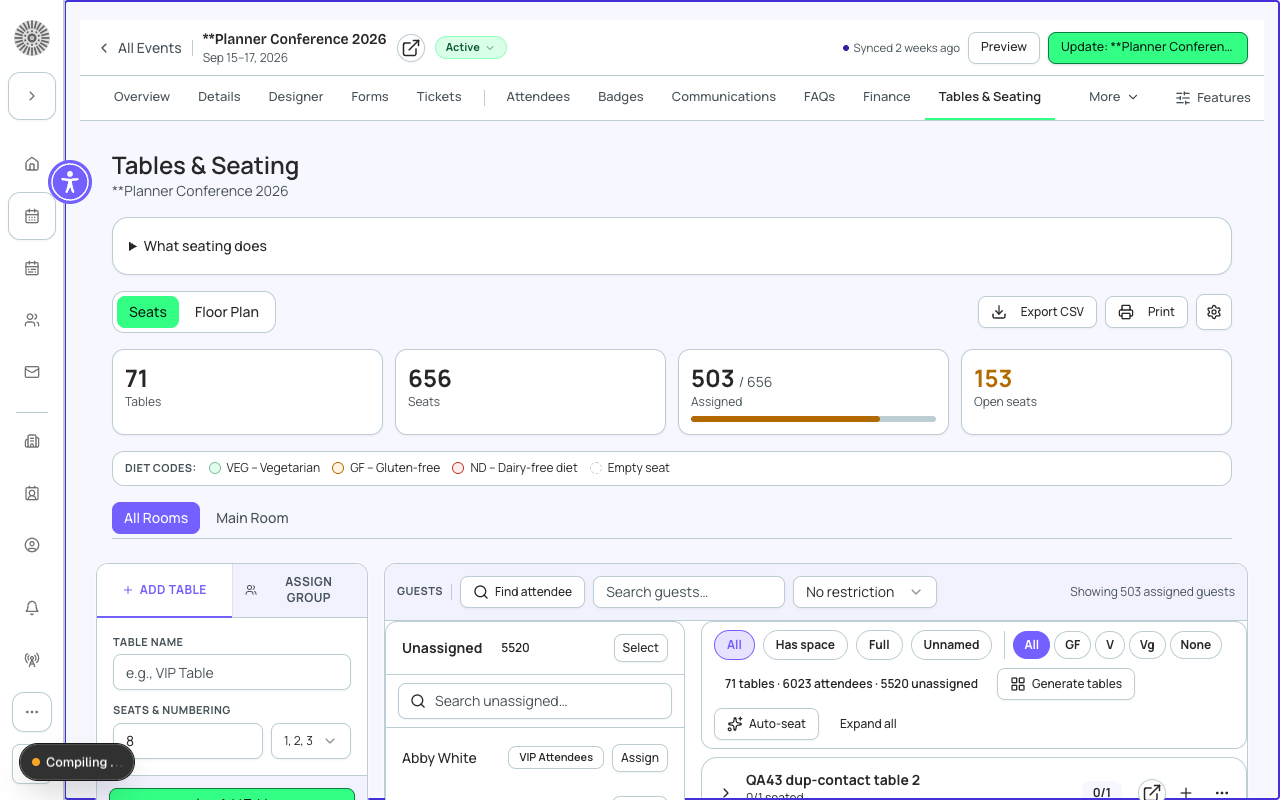
Early AccessManage on the Beta Features pageTables & Seating is where you build the table plan for a seated event and put each registered attendee in a seat. Tables & Seating is listed under Coming soon on /beta, and you can switch it on there for your org. Extra tools (floor plan view, dietary filter, generate tables, auto-seat, swap, seat notes) are a separate feature, Advanced Tables & Seating, listed under Coming soon on /beta, and the VIP pairing signals are a third, still-locked feature.
Stage
Tables & Seating is listed under Coming soon on /beta, with a switch you can turn on for your org. Advanced Tables & Seating is listed under Coming soon on /beta, with no switch. VIP Seating Adjacency is locked for every org today. The sections below say which is which.
What it does
- Create tables, each with a name and a seat count, and group them into rooms.
- Seat attendees one at a time, in bulk, or a whole attendee group at once.
- Show dietary codes on seat chips so catering can see them at a glance.
- Find any attendee and see which table and seat they have.
- Export the seating list to CSV, and print place cards and table cards.
Seating rules
- Open Rules in the left panel and add Keep together, Keep apart, or VIPs near stage rules.
- Rules for the event also apply to every session layout; a session can add its own.
- The Rules strip above the canvas shows how many rules are unmet and which tables to check.
- Rules only warn. They never move anyone, and you can seat guests against a rule.
Open it
- Open your event and choose Tables & Seating in the event sidebar. If the tab is missing, your profile may not have access to it (see Admin > Profiles).
- Add tables. A name is required: leaving it blank shows an inline message and creates nothing. Set its seats. An event allows up to 200 tables and 150 seats per table unless its Event Settings set other limits (Max Tables Per Event, Max Seats Per Table); Forge shows both limits above the table list and refuses a table that goes over, because Salesforce's Table Manager locks an event that exceeds them. Table and seat records are created in Salesforce.
- Seat attendees (see the table below).
- Choose Export CSV for the caterer or Print for place cards and table cards.
Tables sold as block tickets show a Block ticket filter next to the limits. Choose a block ticket to see only the tables sold under it.
Page controls
| Control | What it does | Recommendation |
|---|---|---|
| Stats row | Shows tables, seats, assigned attendees and rooms, plus open seats. A fill bar shows what share of seats is filled. | Check open seats against your final headcount before you print. |
| Layout picker | When the event has sessions, the picker above the canvas switches between the event layout and a session's own layout, such as a welcome dinner and an awards lunch. | A session without a layout shows the event layout. Choose Create session layout to give it its own rooms. A session that has ended is read-only. |
| Rooms tabs | Tables belong to a room. Pick a room to see only its tables, or All Rooms. | Use one room per ballroom or venue space so tables in different spaces do not get mixed up. |
| Add Table | Creates a table with the name and total seats you enter. | Match seats to the real chairs at the table. Add or delete single seats later if one table is different. |
| Seats & numbering: Numbering format | How new seats are numbered: 1, 2, 3 (numeric); A, B, C (alpha); or 001, 002, 003 (padded numeric, with a padding length). | Use alpha for theatre-style rows, numeric for banquet tables, and padded numeric if you export to a system that sorts text. |
| Settings: Seating unit label | Renames what a seating group is called throughout the page: Table, Section, Row, or Custom text (up to 40 characters, for example Cabana). | Pick Section or Row for non-banquet layouts so the buttons read correctly. |
| Assign Group | Choose a table and an attendee group, then Add group to table to seat every member in the next empty seats. If the table is too small it seats as many as fit and tells you how many were seated. | Use this for companies or families that must sit together. Pick a table with enough empty seats first. |
| Assign selected | Select several unassigned attendees, then choose a table card to seat them in order. A message reports how many were seated and how many are still unassigned. | Use for ad-hoc batches that are not a registration group. |
| Find attendee | Search by name to see Seated at table and seat number, or Unassigned. | Use at the event to answer guest questions. |
| Search guests | Filters the attendee list by name. | Use with Unassigned to work through who still needs a seat. |
| Seat actions | Assign, Swap, Clear or Notes on a seat, plus Rename, Add seat and Delete on a table. Deleting a table or seat returns its attendees to the unassigned list. | Clear a seat before reassigning if you want a clean history. |
| Export CSV | Downloads one row per seated attendee: table name, seat number, attendee name, email, dietary restriction and meal choice. | Send this to the caterer. Re-export after any change; it is a snapshot. |
| Opens Place Cards or Table Cards in a new tab for printing from your browser. | Print after the seating is final; reprint if anyone moves. | |
| Refresh | Reloads attendees and tables from the Salesforce cache. | Use if registrations were added in Salesforce a moment ago. |
Share a read-only seating chart
Choose Share in the Tables & Seating toolbar to create a link that anyone can open without signing in. Pick Table numbers only or Guest names. Links expire after 30 days and you can revoke one at any time; a revoked or expired link shows no chart.
Which attendees can be seated
Auto-seat skips attendees whose registration is Declined, Canceled, Rejected or Waitlisted. Manual assignment is not limited that way.
Advanced Tables & Seating (Coming soon)
When Advanced Tables & Seating is released, it adds these tools to the same page. Until then, none of them appear.
| Tool | What it does | Recommendation |
|---|---|---|
| Floor Plan tab | A visual canvas for the active room. Drag tables, add zones (Add zone), and open Floor Plan Setup to set the room width and depth in feet (between 1 and 1000); it shows roughly how many 60-inch tables fit. | Set the room size first so the layout matches the venue. |
| Diet filter and legend | A Filter by diet menu (Gluten-Free, Vegetarian, Vegan and ND) and a legend of the codes VEG, GF and ND (dairy-free). Seat chips are colour-coded. | Filter to one diet to count meals per table. |
| Generate tables | A three-step sheet: Guests (defaults to the registered attendee count, editable), Seats per table, Review. It adds tables and keeps existing ones. | Use for a new event with no tables. Check the summary of tables, seats and empty seats before you confirm. |
| Auto-seat | Previews proposed seating before anything is saved, with seated, unseated and split-group counts and warnings. | Review the preview. It keeps groups together where one table fits them, seats VIP guests at the earliest tables, and warns when a group is larger than any table and must be split. |
| Swap | Swap two seated attendees. Saved together so neither is lost. | Use to move someone without unseating them first. |
| Dietary for kitchen | Select a table to see how many seated guests have each dietary answer, plus Not provided for guests who did not answer. Export room CSV, Place cards CSV (name, table, seat as text) and Print dietary cover every table. | Counts are read live from Salesforce and are never stored. A guest with several answers counts once in each; the total is always the number of seated guests. |
| Guest list filters and Group by | Chips above the guest list filter by All, Unseated, Seated, VIP and Dietary; VIP and Dietary show only when a guest has that data. Group by splits the list by ticket type or a mapped field such as company, and Seat group on a section seats its unseated guests. | Changing a chip, the search or the grouping returns to the first 20 guests; use Show more for the rest. Dietary and VIP are read live from Salesforce for the guests on screen and are never stored. |
| Gala guest details | For events with an auction or donations, each guest in the list shows their paddle number and donor tier as text. Donor tier is the highest giving level of the event's auction appeals that the guest's committed donations reach; it reads Not provided when there is none. | These values are read live from Salesforce and are never stored. Name a table Host: or Sponsor: followed by a name to label it in the table list. |
| Seat notes | A note box and change history for a seat. | Notes are saved per seat in Forge, not on the Salesforce record. Keep requirements that other systems need in the attendee record. |
Guided workspace is preview only
A three-pane guided workspace (rooms on the left, floor plan in the middle, table details on the right, with layout templates Banquet, Gala, Cabaret, Classroom, Theatre, U-shape, Boardroom and Cocktail, saved templates, undo and redo, and named Versions you can compare with the current plan and restore) exists in the product but only loads when a preview flag is on for the deployment. It is not something an admin can switch on from /beta today.
- Delete a saved template from My templates with the trash button on its row. A confirmation names the template; layouts already applied are not changed.
- Delete a session's own layout with Delete layout next to the session picker. The session returns to the event layout. Layouts of ended sessions are read-only.
- Versions lists each saved version with its seat changes plus the tables moved, added or removed since then, with the old and new position of each moved table. Tables without a name or number show as Unnamed table 1, Unnamed table 2 and so on.
- A read-only share link labels a table by its number; with a names link an unnumbered table shows its name, and otherwise Table 1, Table 2 and so on by position.
VIP Seating Adjacency
VIP Seating Adjacency would show, next to a seat assignment, whether an attendee has sat with a VIP at past events (Repeat pairing or New pairing). It is a separate feature and is locked for every org today; see its own guide page.
Current limitations
- Each table holds 1 to 50 seats in the Add Table form.
- Seat notes are saved in Forge only; they do not appear on the Salesforce seat record.
- The floor plan and layout canvases are meant for a desktop browser; use the seats list on a phone.
- Access follows your profile: a profile without the Tables nav item cannot open any Tables & Seating page, including print pages.
Salesforce note
Tables and seats are Salesforce records (the Table and Seat objects of the Events package), and an assignment sets the seat's attendee. Forge reads them just in time and writes changes straight back, so a seat change shows up in Salesforce. Seat numbering format and the seating unit label are stored per event in Forge.