Beta & Experimental Features
Fees
BetaFees adds taxes and payment-processing fees to ticket orders. You create fee records, each with a percentage, then assign one as the event's tax and one as its payment-processing fee. Fees are Salesforce records, so everything you create here is also visible in Salesforce.
The Fees tab appears under Manage > Tickets only for organizations where Blackthorn has enabled Fees; the Beta features page (/beta) lists Fees under Included in GA and has no switch for it. It is hidden for free events.
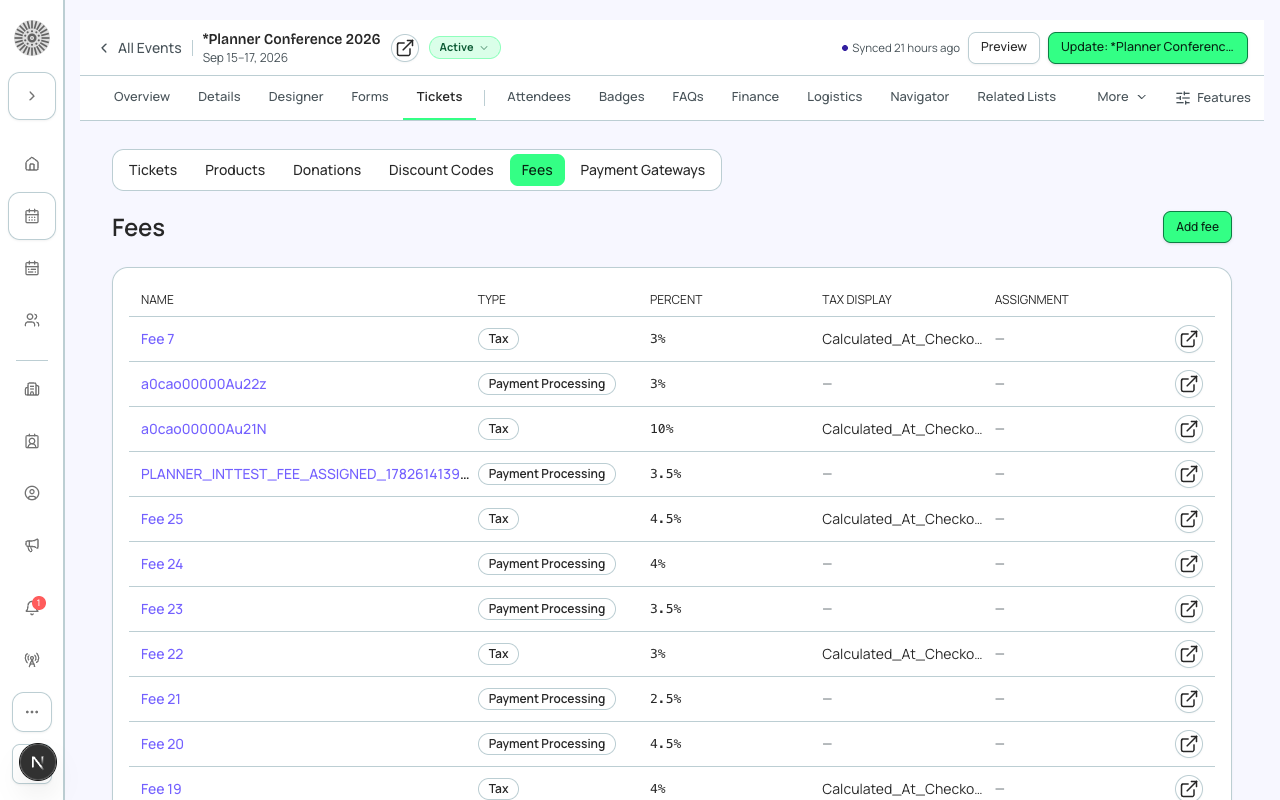
Fees list
| Column | What it shows |
|---|---|
| Name | The fee name. Click a row to open it. A Salesforce icon opens the record in Salesforce. |
| Type | Payment Processing or Tax. |
| Percent | The rate, for example 2.9%. |
| Tax display | Inclusive or Exclusive for tax fees; blank for payment fees. |
| Assignment | Payment fee and/or Tax fee badges when the fee is assigned to this event. |
Click a column header to sort. The list shows 20 at a time with Show more, and has a refresh control. If the Fee object is not installed in the org you see Fees can't be saved yet instead of the list.
Create or edit a fee
Click Add fee. Every field is required except Tax display setting, which is required for tax fees.
| Field | What it does | Recommendation |
|---|---|---|
| Fee name | Name you see in lists and the assignment badges. | Describe the purpose, for example Credit Card Processing or State Sales Tax. |
| Fee type | Payment Processing or Tax. Tax is applied to the total after discounts. Payment processing fees are applied after tax. | Create one of each type to cover both. |
| Percent | The percentage of the order, greater than 0 and up to 100. Enter 2.9 for 2.9%. | Use the real rate you are charged for processing, or your tax rate. |
| Tax display setting (tax fees only) | Tax-Inclusive Pricing: the advertised price already includes the tax. Calculated at Checkout: tax is not shown until the final payment screen. Taxes are always shown separately on the final payment screen. | To advertise one all-in price (common in the EU and for nonprofits), choose Tax-Inclusive Pricing. To show the base price and add tax later (common in the US), choose Calculated at Checkout. |
Validation
The percentage rule is enforced by Salesforce too. A tax fee with no tax display setting is rejected.
Assign a fee to the event
A fee does nothing until it is assigned. Open the fee and click Assign as Tax Fee or Assign as Payment Processing Fee. Use Unassign from event to remove it.
- An event has one tax fee slot and one payment-processing slot. If a fee is already there, Forge asks Replace existing assignment? and names the fee being removed.
- Only a Tax fee can go in the tax slot, and only a Payment Processing fee can go in the payment slot.
- Payment processing fees are currently applied only when the buyer pays by credit card.
- Tax is calculated on the total after discounts and before the payment processing fee.
Example: to charge 8% tax and pass on a 2.9% card fee, create two fees (Tax 8, Calculated at Checkout; Payment Processing 2.9), assign each to the event, then check the total on a test registration.
Delete a fee
Delete fee permanently removes the fee from Salesforce after confirmation.
Salesforce note
Fees are stored on the Fee object (name, type, percentage, tax display setting) and linked from the event through its Tax Fee and Payment Processing Fee lookups. Each fee also has a Default Fee flag in Salesforce.