Beta & Experimental Features
Invoices
BetaInvoices lists the invoices behind your event's orders and sponsorships so you can see who owes what: filter by status, search by buyer or invoice number, and export the list to CSV. Open it from Manage > Finance > Invoices.
Stage
Invoices is generally available (always on) for paid events. It is hidden on free events because there is nothing to invoice. It needs the invoice object mapped under Admin > Object Mapping; if it is not, the page shows an Invoice not configured card instead.
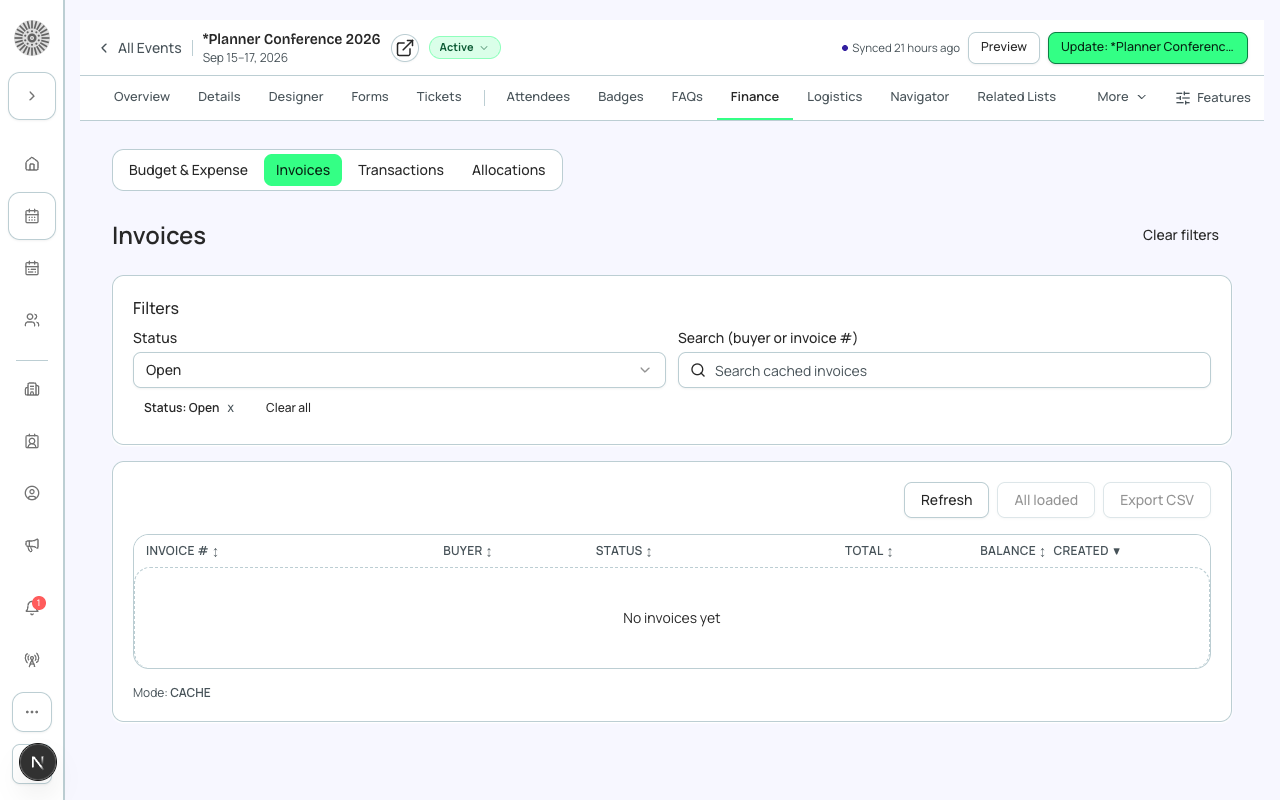
What you see
Forge does not create invoices. They are Sales Documents created by Blackthorn Payments in Salesforce when someone checks out. This page reads them and shows the payment state. The list is a cached copy that refreshes every 30 seconds and loads 200 invoices at a time; the table shows 20 rows with Show more.
| Column | What it means | Recommendation |
|---|---|---|
| Invoice # | The invoice's number. Click it to open the invoice detail in Forge; the small icon beside it opens the record in Salesforce. | Quote this number when talking to a buyer or to finance. |
| Buyer | The customer the invoice is billed to. | Search by buyer name to find all of one person's invoices. |
| Status | The payment state: Paid, Unpaid, Partially Paid, Past Due, Refunded, or the document status such as Voided. | Treat Past Due as the list to chase. |
| Total | The invoice amount in its currency. | Compare against your Orders total when reconciling. |
| Balance | What is still owed. | A balance above zero on a Paid-looking invoice means a partial payment; check Transactions. |
| Created | When the invoice was created. | Sort by this to find the newest. |
| Gateway badge | Which payment gateway was used. | Use it to split reconciliation by gateway. |
Filters, summary and export
| Control | What it does | Recommendation |
|---|---|---|
| Summary chips | One chip each for Paid, Open, Partially Paid, Overdue, Cancelled and Refunded, with a count of the loaded invoices. Click one to filter the list to it. | Start here for a quick picture. Open means unpaid and Cancelled means voided. |
| Status filter | All, then the payment states and document statuses actually present in your data. A chip appears above the list while a filter is active, and you can clear it. | Choose Overdue before a finance review. |
| Search | Matches buyer name or invoice number in the loaded invoices. | Load more invoices first if the one you want is not found. |
| Refresh | Reloads from Salesforce on demand. | Use after taking a payment so the balance updates now. |
| Load more | Fetches the next 200 invoices. Shows All loaded when done. | Load everything before you export. |
| Export CSV | Downloads invoice id, name, buyer, status, total, balance, currency, created date and gateway details for the invoices loaded. | Export after Load more so the file is complete. |
| Footer | Records count, the time of the last sync, and a note when more pages exist. | Check the sync time if numbers look old. |
Your filter choices are remembered per event in your browser profile. If the filter store is offline, a notice says changes save locally only.
Invoice detail
An invoice opens to Invoice details, Line items (Description, Qty, Unit price, Amount) and Transactions (Status, Method, Transaction ID, Date, Gateway). From there you can open it in Salesforce, view the public invoice, download a PDF, or export the lines.
Salesforce note
Invoices are Blackthorn Payments Sales Document records, and the line items and transactions are Salesforce records too. Forge only reads them for this page; payments and refunds happen in Blackthorn Payments.